












A YouTube Thumbnail with One Gemini Prompt: AI Thumbnail Lessons 2
We upload the image from Lesson 1 to Gemini and turn it into a finished thumbnail with one prompt: the 6 parts of the prompt, checking the result, the small-size test and a cartoon-style second thumbnail.
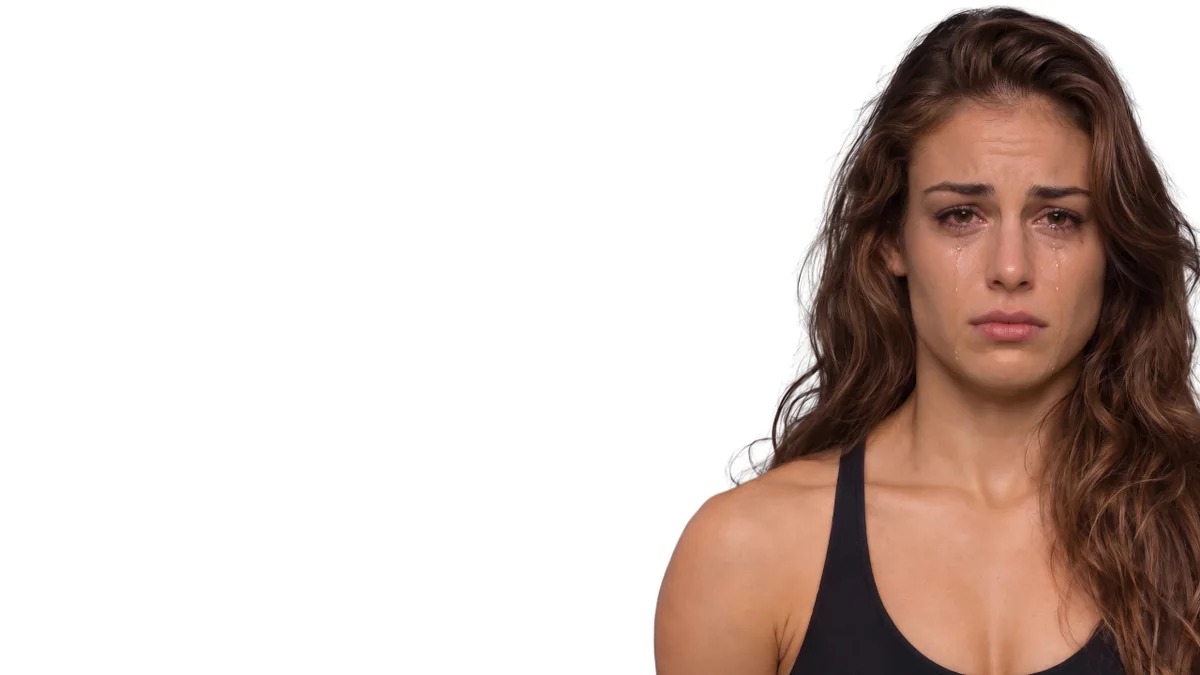
In the last lesson we started from a plain studio photo: we changed the facial expression in Gemini, removed the background and placed the face in the right third of a 1280 x 720 canvas in Canva. The left side was left completely empty. In this lesson we fill that space with a single prompt and turn the image into a finished YouTube thumbnail.
This is the written version of the second lesson in our YouTube series AI Thumbnail Lessons. If you missed the first steps, start with Lesson 1. The video and our screenshots are in Turkish; the prompts below are given in English.
In this lesson:
- The 6 parts of the prompt that delivers a finished thumbnail: task, text, text placement, protection, scene and aspect ratio.
- Checking Gemini's result: spelling and special letters, extras it added on its own and repeated marks.
- Testing the thumbnail at small size.
- A second, cartoon-style thumbnail from the same image with one sentence.
Starting point: face on the right, left side empty
We have the PNG we downloaded from Canva at the end of Lesson 1: 1280 x 720, a crying face in the right third, the rest white. The white area is not a mistake; it is the empty stage we leave for Gemini. In the prompt we will say "fill the white area", and Gemini works out what to put where from that empty space.
One prompt: the sentences that deliver a finished thumbnail
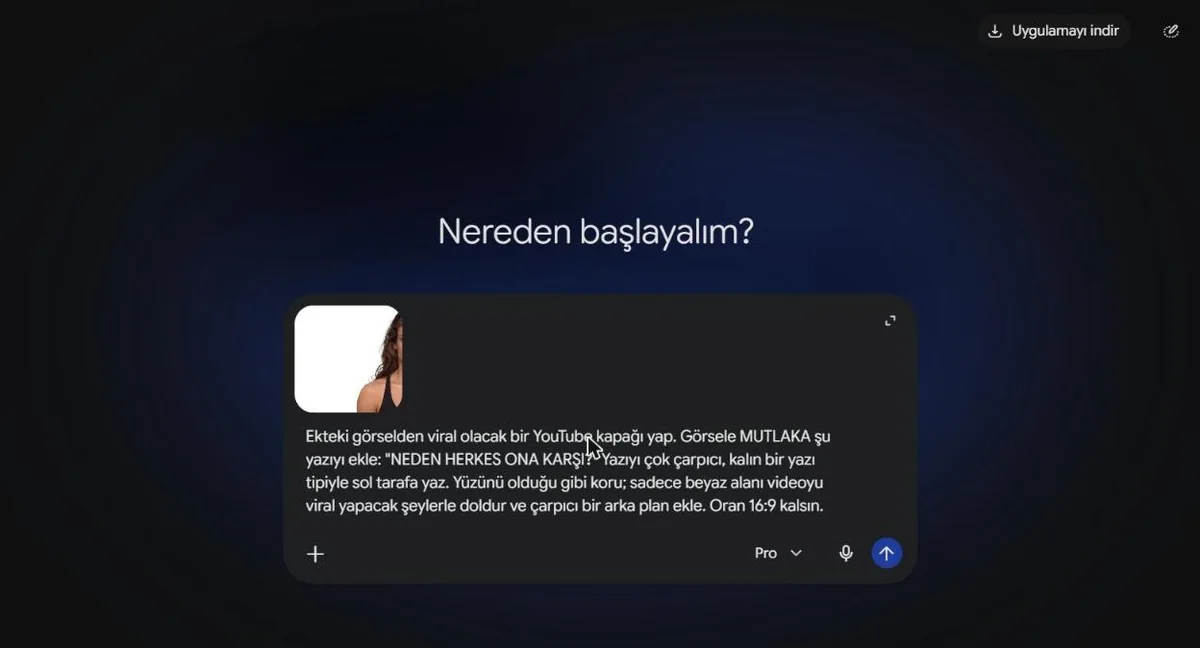
Open Gemini, upload the image into the text box and write the prompt. Ours was in Turkish; in English it reads:
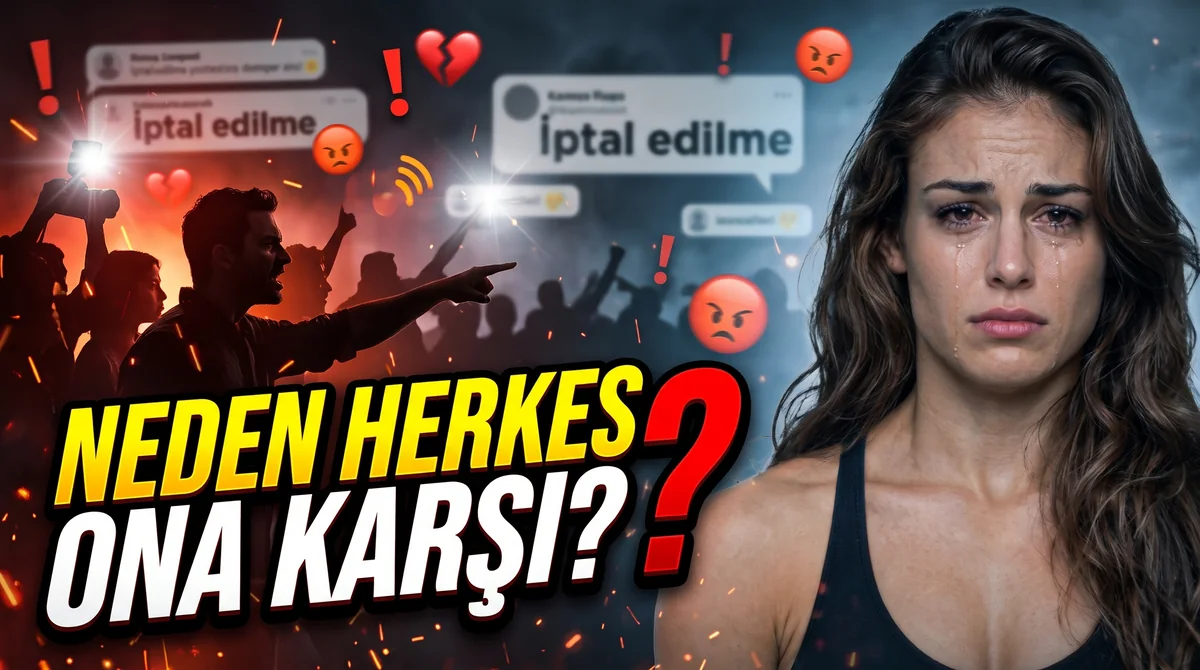
To Gemini: Turn the attached image into a YouTube thumbnail that will go viral. You MUST add this text to the image: "WHY IS EVERYONE AGAINST HER?" Write the text in a very striking, bold font on the left side. Keep her face exactly as it is; only fill the white area with things that will make the video go viral and add a striking background. Keep the aspect ratio 16:9.
The 6 parts of the prompt
The prompt looks long, but each part has a single job. For your own thumbnail, change only what goes inside each part:
- Task: "Turn the attached image into a YouTube thumbnail that will go viral." Gemini knows what to produce and which image to start from.
- Text: "You MUST add this text to the image" with the text itself in quotation marks. The capitalised "MUST" and the quotes make it harder for the text to be skipped or changed.
- Text style and position: "in a very striking, bold font on the left side". Without a position, the text may land on top of the face.
- Protection: "Keep her face exactly as it is". As in Lesson 1, this is the most important sentence: leave it out and the person may change.
- Scene: "only fill the white area with things that will make the video go viral and add a striking background". It limits what gets filled and leaves the scene to Gemini.
- Aspect ratio: "Keep the aspect ratio 16:9." YouTube thumbnails are 16:9; without it you may get a square or vertical image.
You can describe the scene yourself: instead of "things that will make the video go viral", write your video's topic. For example "a crowd pointing fingers and broken hearts behind her" or "a dark office and scattered papers behind her". The more concrete you are, the better the scene fits the topic.
The result: a scene that tells a story
A few seconds later the thumbnail arrived. On the right, the face is unchanged. On the left, the question in bold yellow and white letters. Behind it, a scene that tells the story: a crowd pointing fingers, angry face icons, broken hearts and bubbles that look like social media notifications. All four parts of the formula from Lesson 1 are there: a face, a strong emotion, a short question and a scene that sparks curiosity.
Check before you publish
Even when an AI result looks great, there can be mistakes you miss at first glance. Look at the downloaded image at full size and check these three things.
1. Spelling and special letters
AI image tools sometimes skip letters, distort them or draw accented and special characters wrongly. Our text is Turkish, and the Ş in "KARŞI" and the words "NEDEN HERKES" came out correctly. Whatever your language, read the text letter by letter every time.
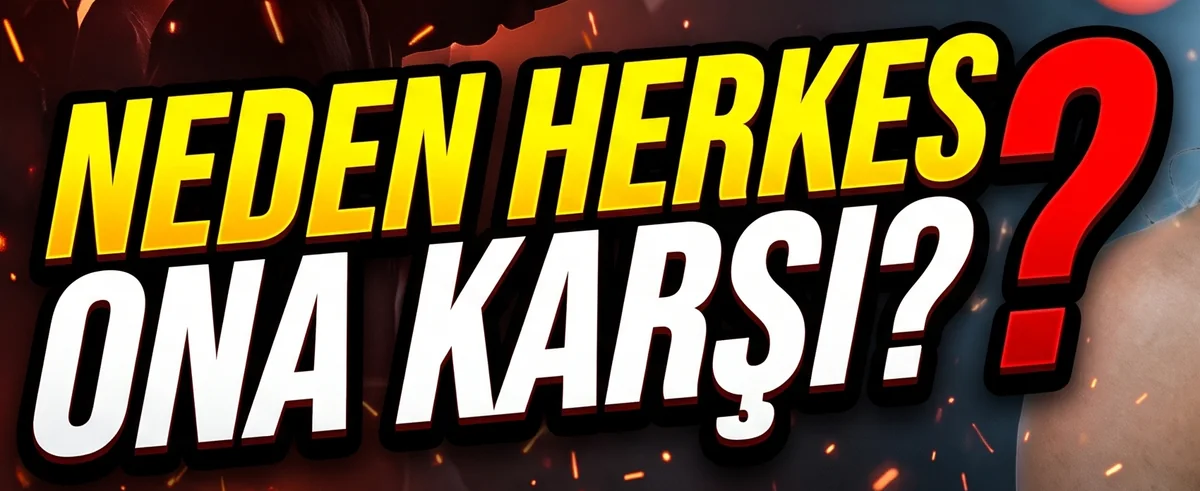
If a letter comes out wrong, you have two options: regenerate with the same prompt, or take the image into Canva and type the correct text over the wrong one in the same colour and a bold font.
2. Things added on their own
While filling the scene, Gemini also makes its own decisions. Our thumbnail has two examples:
- A doubled question mark: the text already ends with a question mark, and Gemini added a large red one next to it. It may look eye-catching, but it was not a deliberate choice; if you do not want it, add "do not add any other marks to the text" to the prompt.
- Its own small text: the bubbles in the background contain words such as "İptal edilme" (Turkish for "being cancelled") and unreadable user names. Check that such small text makes sense and is spelled correctly; remove anything that looks like a real person's name or account.
3. The small-size test
Viewers usually see your thumbnail on a phone, in a tiny box. Shrink the image to about 320 and 168 pixels wide and look again: can you still read the question, can you still see the emotion on the face? In our thumbnail the text is readable at both sizes and the face is clear.
A second thumbnail with one sentence: cartoon style
By writing one more sentence in the same chat, we got a completely different thumbnail. The gist of the request was: turn the image into a semi-cartoon style, make the background dark red and write "PARA İÇİN HER ŞEY" (Turkish for "Anything for money") in white, very bold letters on the left; aspect ratio 16:9 again.
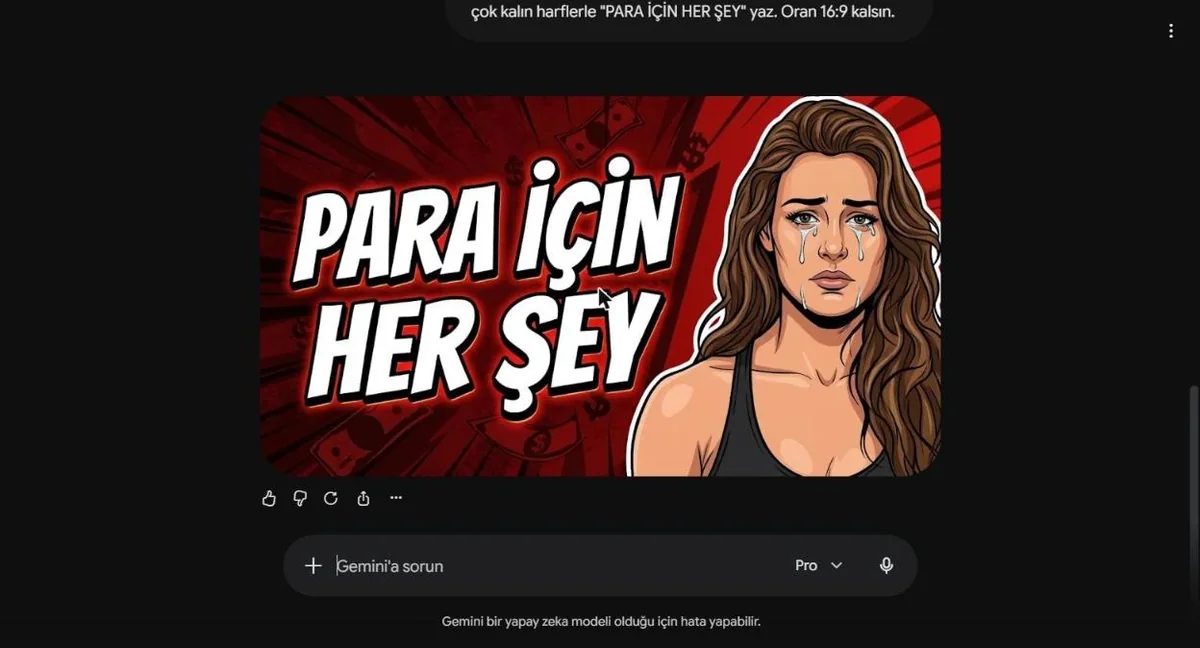
An illustration has two advantages: the thumbnail reads very clearly even on a small screen and stands out among photo thumbnails in the feed. The check is the same here too: look at the special letters and make sure they came out right.
The thumbnail must deliver on the video
Making a striking thumbnail with one prompt is easy; the real work is making sure the video delivers on it. If the answer to the question on your thumbnail is not in the video, viewers click and leave straight away. That weakens the channel, not just the thumbnail. Three rules:
- The question or promise on the thumbnail should be what the video actually covers.
- No events that did not happen, no made-up numbers and no real person's face on the thumbnail.
- If you use a realistic AI image, tick the AI disclosure in YouTube Studio.
Homework and the next lesson
Upload the image you prepared in Lesson 1 to Gemini and rewrite the 6-part prompt for your own video's topic. Then run the three checks: spelling, extras and small size. Also try the cartoon style with one sentence in the same chat and put the two thumbnails side by side.
In the coming lessons we look at facial expression and gaze in more detail: surprised, worried and happy expressions, a person looking at the text or pointing, and which of them suits which kind of video.
Sources and related pages
- AI Thumbnail Lessons 1: the first half of a thumbnail from a plain photo
- Google Gemini
- Canva
- YouTube Help: Add video thumbnails
- How to use Google Gemini in 2026
- TurkWebSite on YouTube: the thumbnail lesson videos (in Turkish).
You make the thumbnail, we build the site
Once your videos start getting views, viewers need a website to go to. TurkWebsite builds yours with affordable web design and free hosting.