





















Python from Scratch, Lesson 1: Installing Python and Your First 5 Commands
The first lesson of the Python from Scratch series: we install Python, type five real commands and read our first error messages. With the video and slides, for people who have never written code.

Most people who start learning Python get stuck in the same place: books and videos explain theory at length, and the first line of code comes much later. In this series we do the opposite. First we install Python on your computer, then we immediately type five real commands and read our first error messages together. No memorising.
This article is the written version of the first lesson in the Python from Scratch series on our YouTube channel. The video is in Turkish; you can follow along here in English. The images in this article are the slides from the video.
In this lesson:
- We install Python on Windows with the Python install manager (with a note for Mac).
- We use Python as a calculator: addition, multiplication, division and powers.
- We print text to the screen with print.
- We make three mistakes on purpose and read what the error messages say.
- We use variables to write our first small program, a price calculator.
About the code: The code is exactly the same as in the video, so a few words are Turkish. Merhaba Dünya means "Hello World", fiyat means price, adet means quantity, Toplam means total and dogum_yili means year of birth. You can use English words in your own code.
What is Python, and why start with it?
Python is a programming language we use to tell the computer what to do. Its commands are close to English and easy to read. For example, the command that writes something on the screen is called print.
Python is widely used behind websites, in data work and in AI tools. For a beginner, its biggest advantage is this: you can type a one-line command and see the result right away. In this series we move step by step: first commands today, then files, decisions, loops, lists and functions.
How to install Python (Windows)
If Python is already installed on your computer, you can skip this part and go straight to the first command.
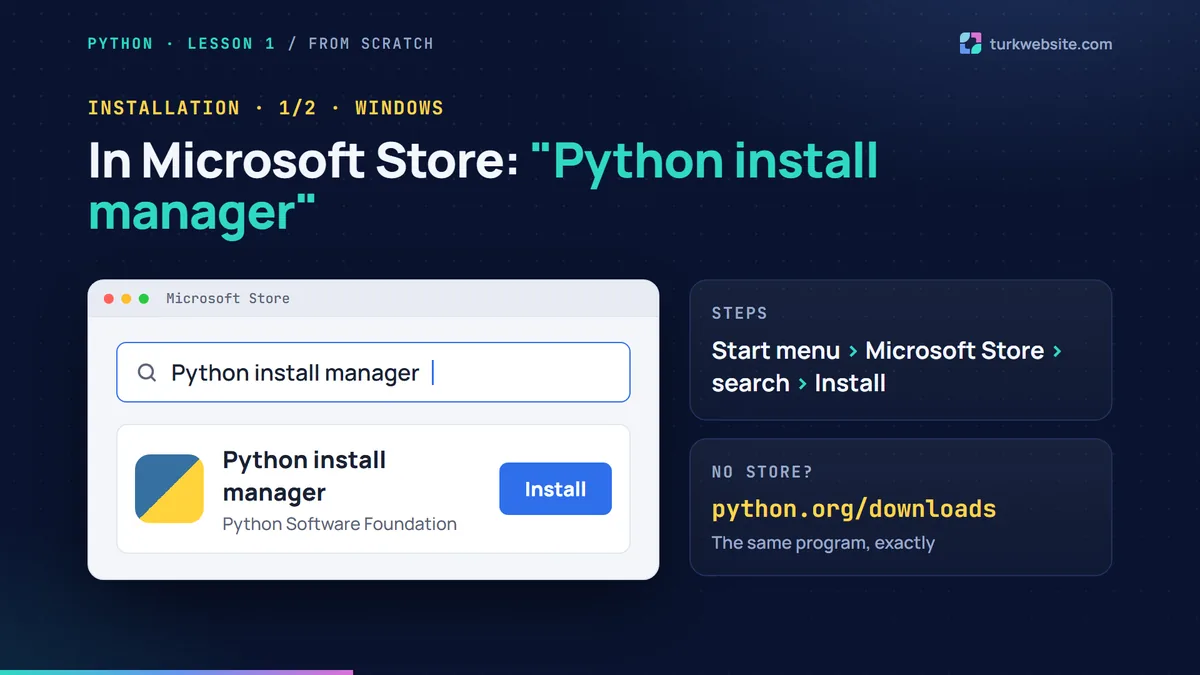
On Windows the easiest way is the Python install manager. It is the official program from the Python Software Foundation, and it downloads and installs Python for you:
- Open Microsoft Store from the Start menu.
- Type Python install manager into the search box.
- Choose the app published by the Python Software Foundation and click Install (shown as "Yükle" on the Turkish slide).
If you prefer not to use the Store, you can get the same program from the python.org downloads page. Both are the same program.
When the installation finishes, type terminal into the Start menu and open Terminal. A dark window appears. Don't worry: this window is where we talk to the computer by typing. Type python in lowercase and press Enter.
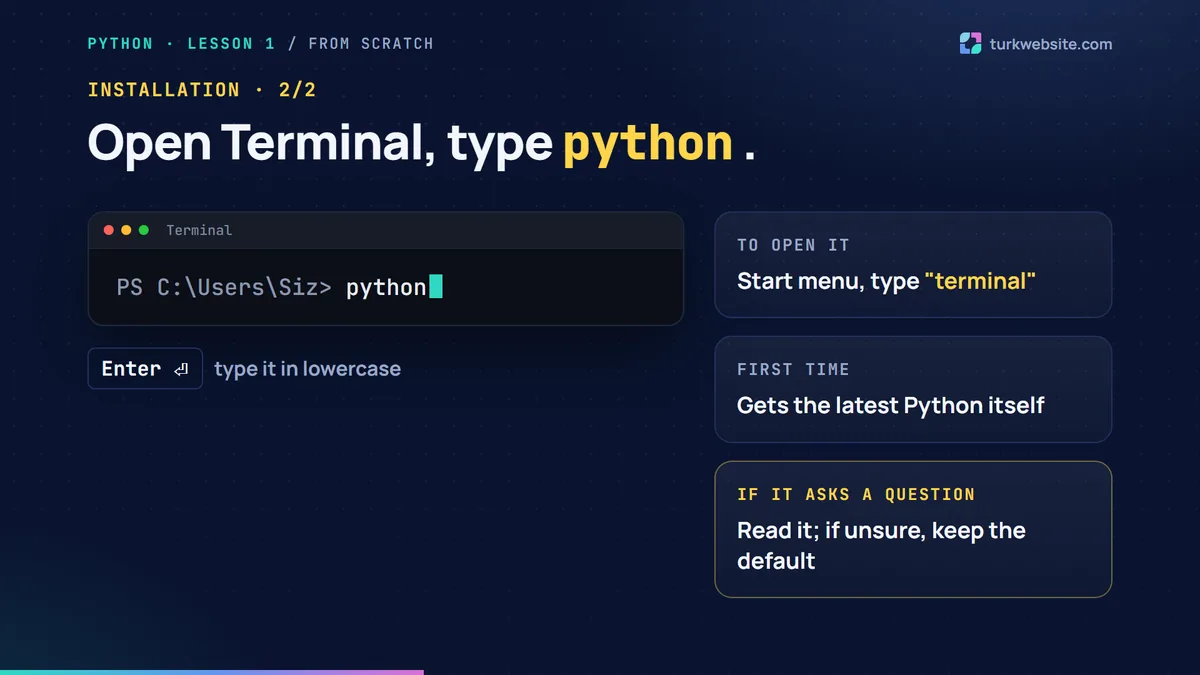
If there is no Python on your computer yet, the program downloads the latest version by itself the first time. If a question appears, read it; if you are not sure, accept the default answer.
Then you will see three greater-than signs: >>>. This sign means "Python is ready and listening". Whatever you type here runs the moment you press Enter.
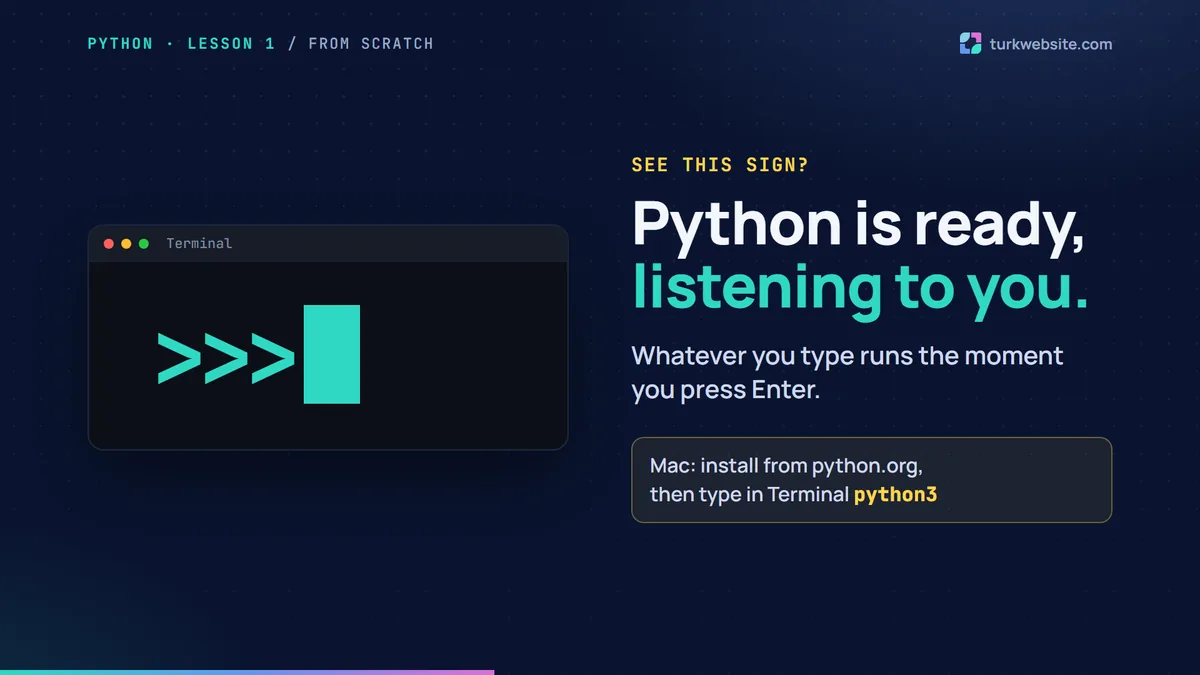
On a Mac: Install the Mac version from python.org, then type python3 in Terminal. Everything else is the same.
Command 1: Using Python as a calculator
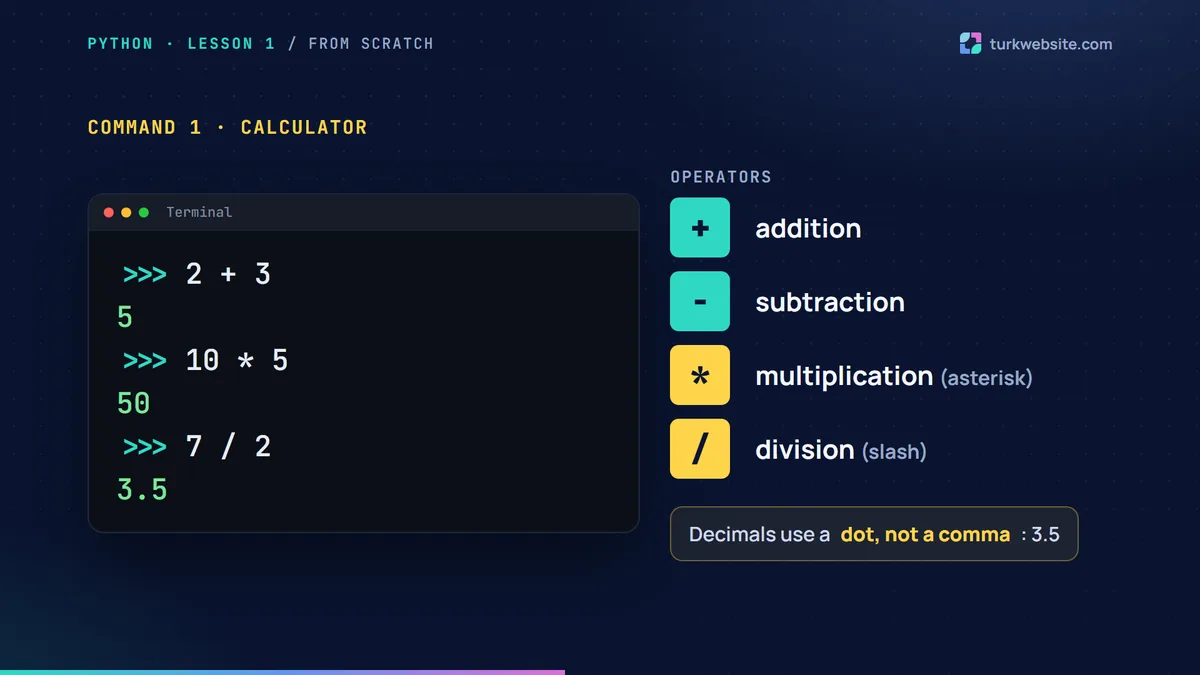
Our first command is a sum. Type the following lines one by one next to the three greater-than signs and press Enter after each:
>>> 2 + 3
5
>>> 10 * 5
50
>>> 7 / 2
3.5
Multiplication uses an asterisk (*) and division a forward slash (/). Python writes decimals with a dot.
Command 2: Powers with two asterisks
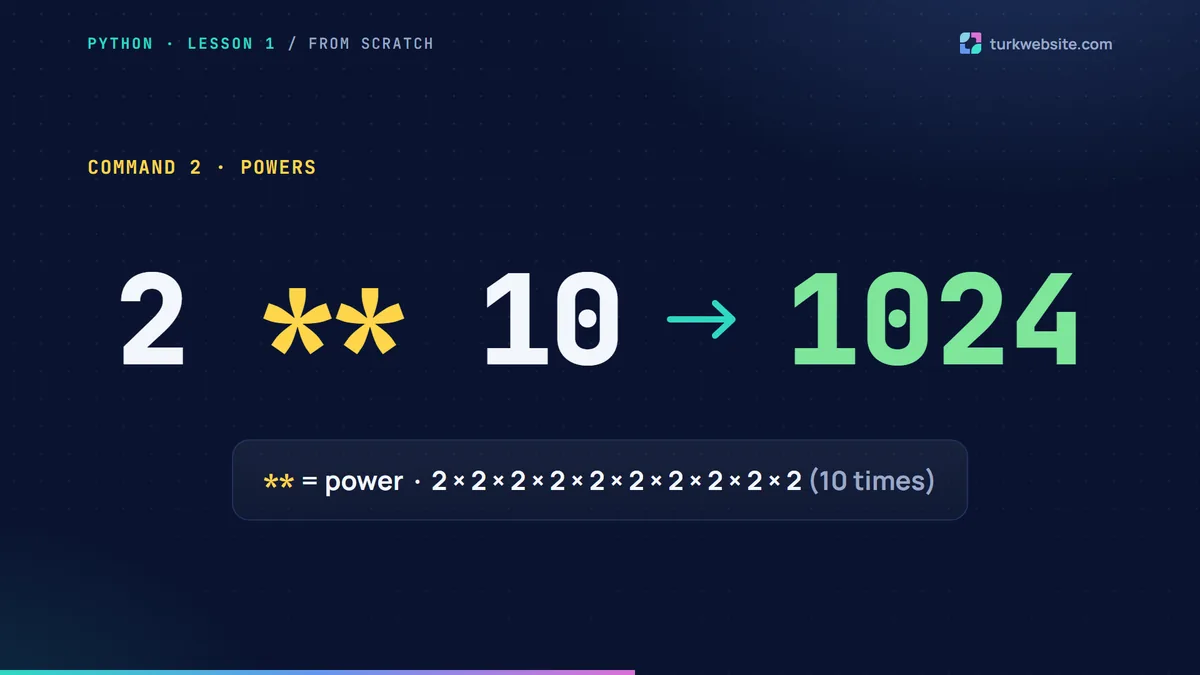
Two asterisks side by side (**) mean "to the power of". Type 2 ** 10: two to the tenth power, which is 1024. A calculation that is hard to do in your head takes Python no time at all.
Command 3: Printing text with print
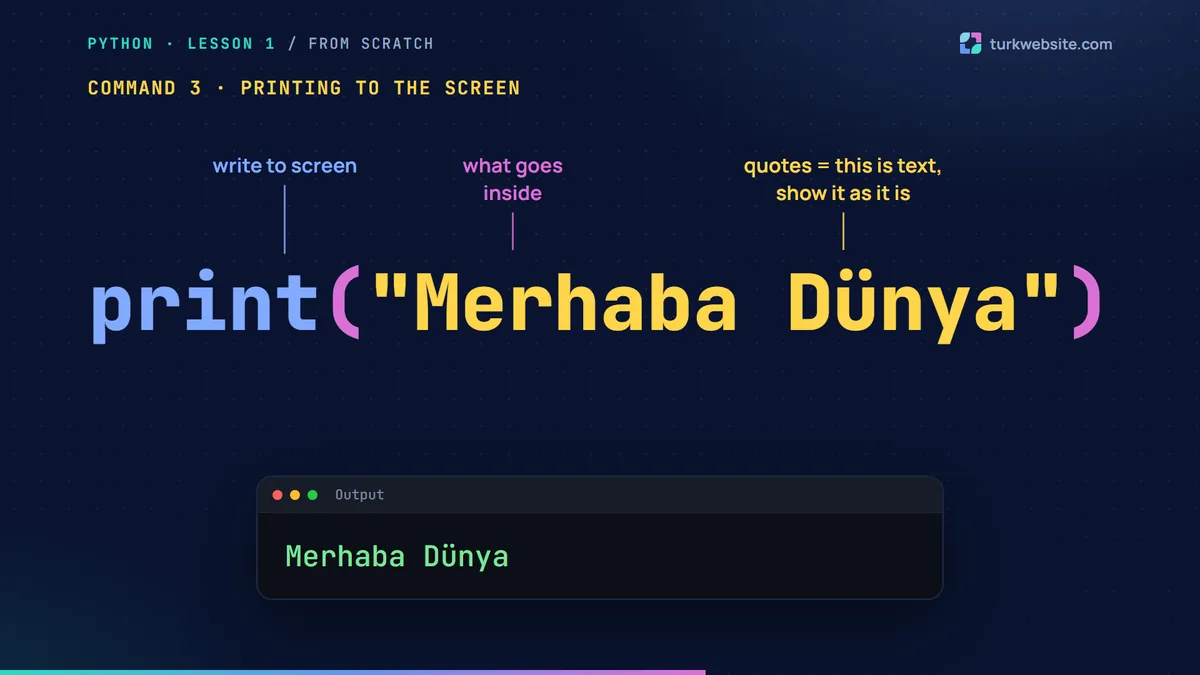
A programmers' tradition: making the computer say "Hello World". Type this:
>>> print("Merhaba Dünya")
Merhaba Dünya
The command has three parts. print means "write to the screen". The brackets hold what should be written. The quotation marks tell Python "this is text, show it exactly as it is".
Let's make three mistakes on purpose
Getting errors is part of the lesson. Python's error messages look scary at first, but they actually tell you where to look.
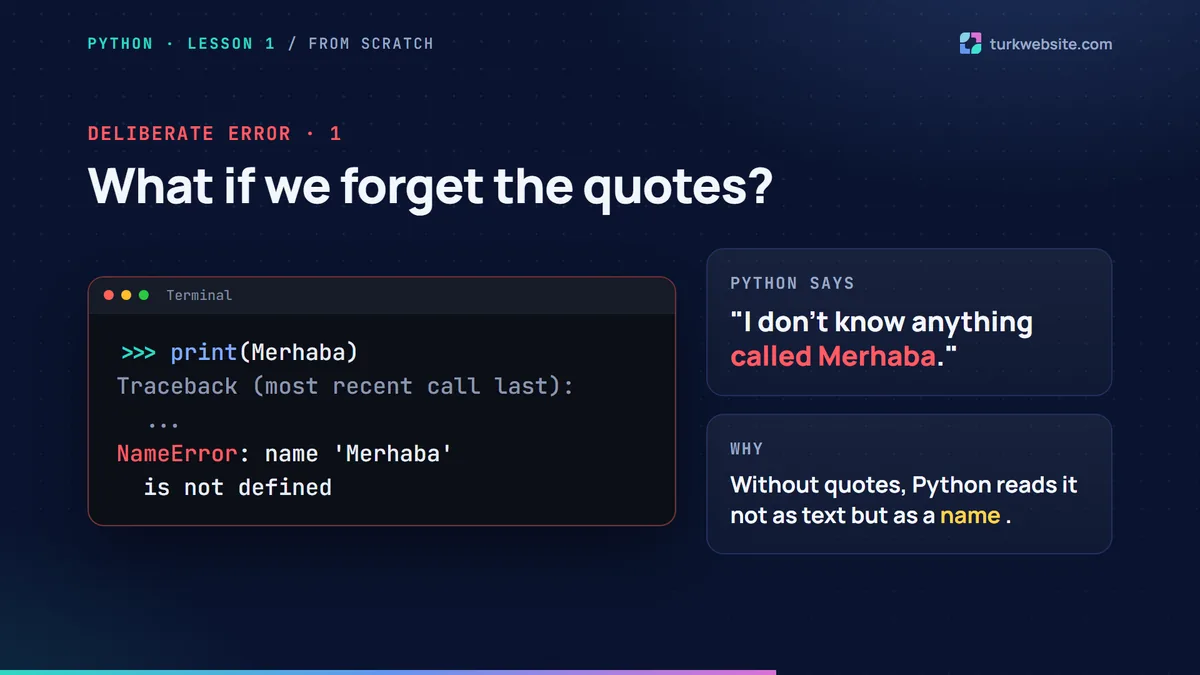
Error 1: Forgetting the quotes (NameError)
Type the same command without quotes: print(Merhaba). Python answers NameError: name 'Merhaba' is not defined, in other words "I don't know anything called Merhaba". Without quotes, Python thinks the word is a name, not text.
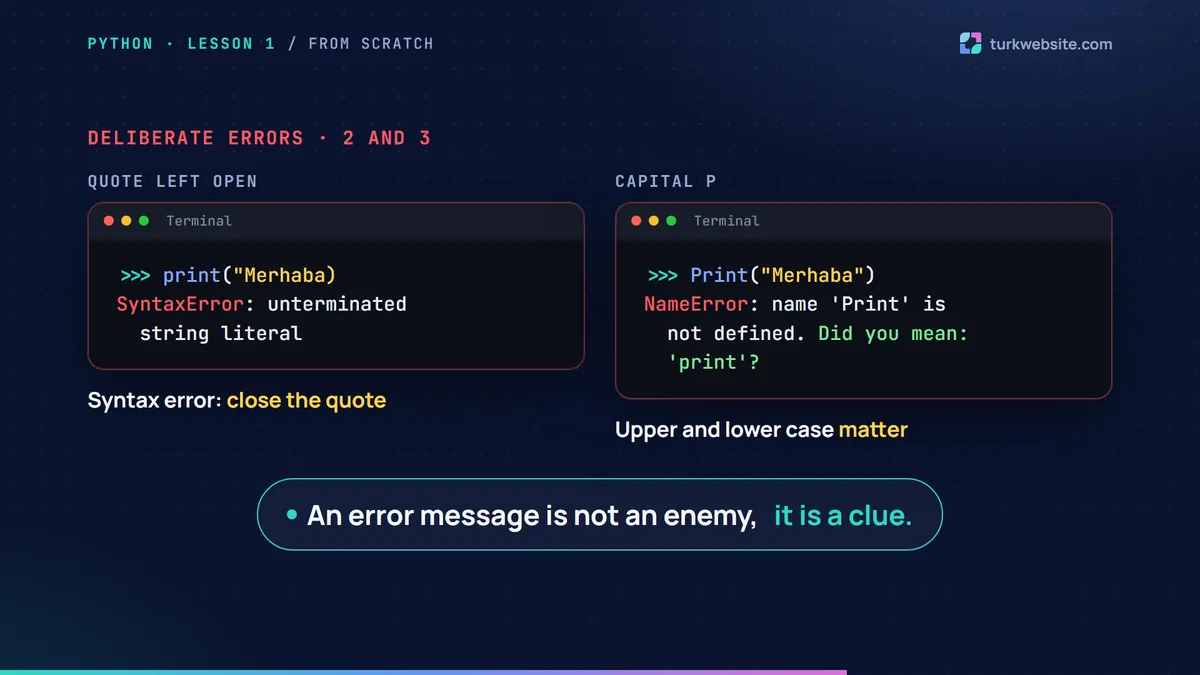
Errors 2 and 3: An unclosed quote and a capital P
If you open a quote and never close it, you get a SyntaxError, which is a spelling mistake in the code. If you write Print instead of print, Python gives a NameError again and even asks Did you mean: 'print'? The lesson here: an error message is not an enemy, it is a clue. Upper and lower case matter in Python.
Command 4: What is a variable?
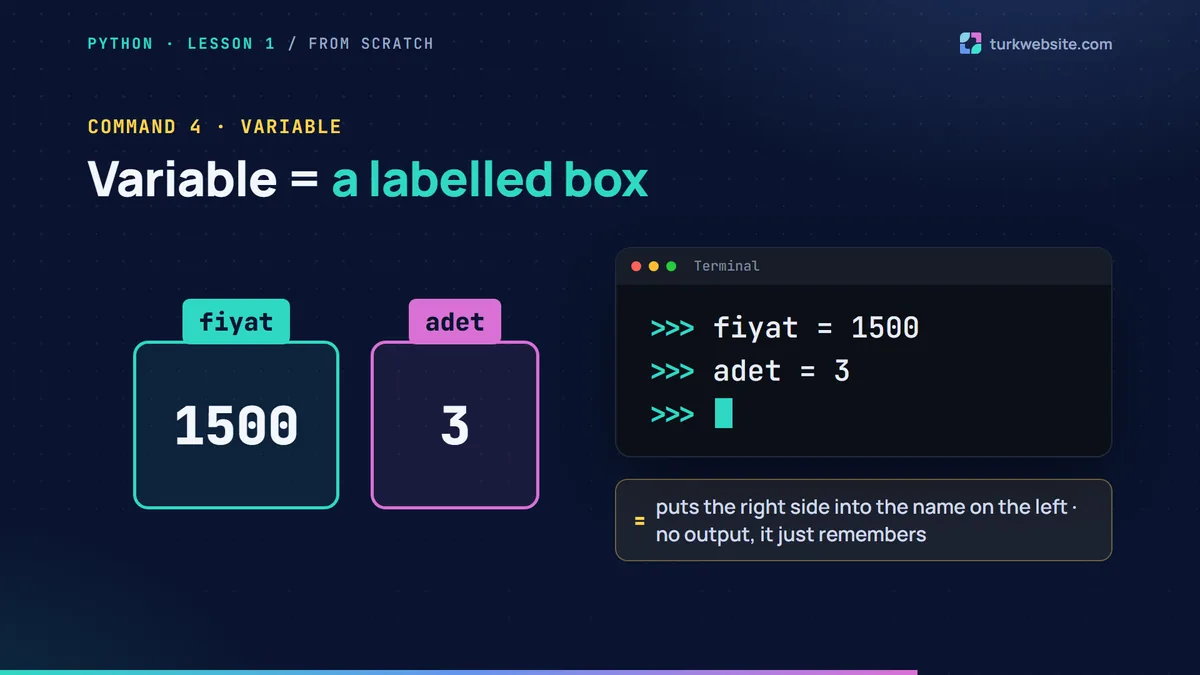
A variable is a name we give to a piece of information. Think of it as a box with a label: the label is the variable's name and the content is its value.
>>> fiyat = 1500
>>> adet = 3
This time Python shows nothing, because it only remembers the values. The equals sign puts the value on its right into the name on its left. Here fiyat is the price and adet the quantity.
Command 5: Your first program, a price calculator
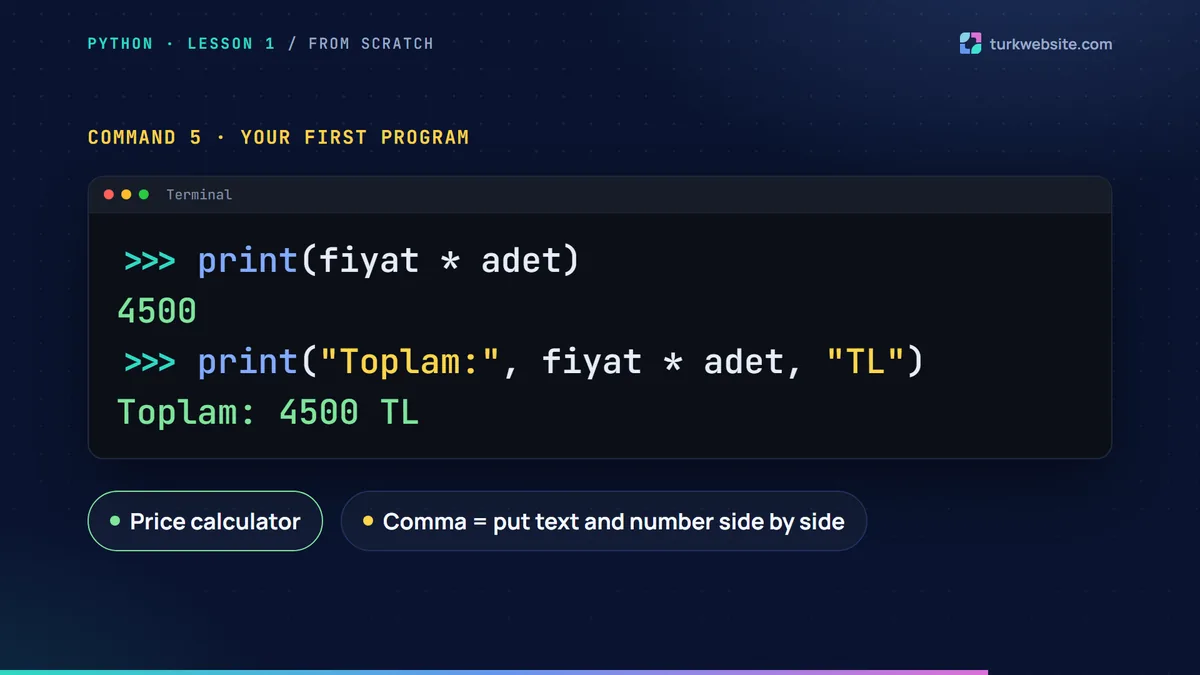
Now let's combine the two variables:
>>> print(fiyat * adet)
4500
>>> print("Toplam:", fiyat * adet, "TL")
Toplam: 4500 TL
Python took the values out of the boxes and multiplied them. In the second line we added text inside print, separated by commas: Python writes the comma-separated parts side by side with a space between them. That is your first small program.
AI corner: How to ask about an error
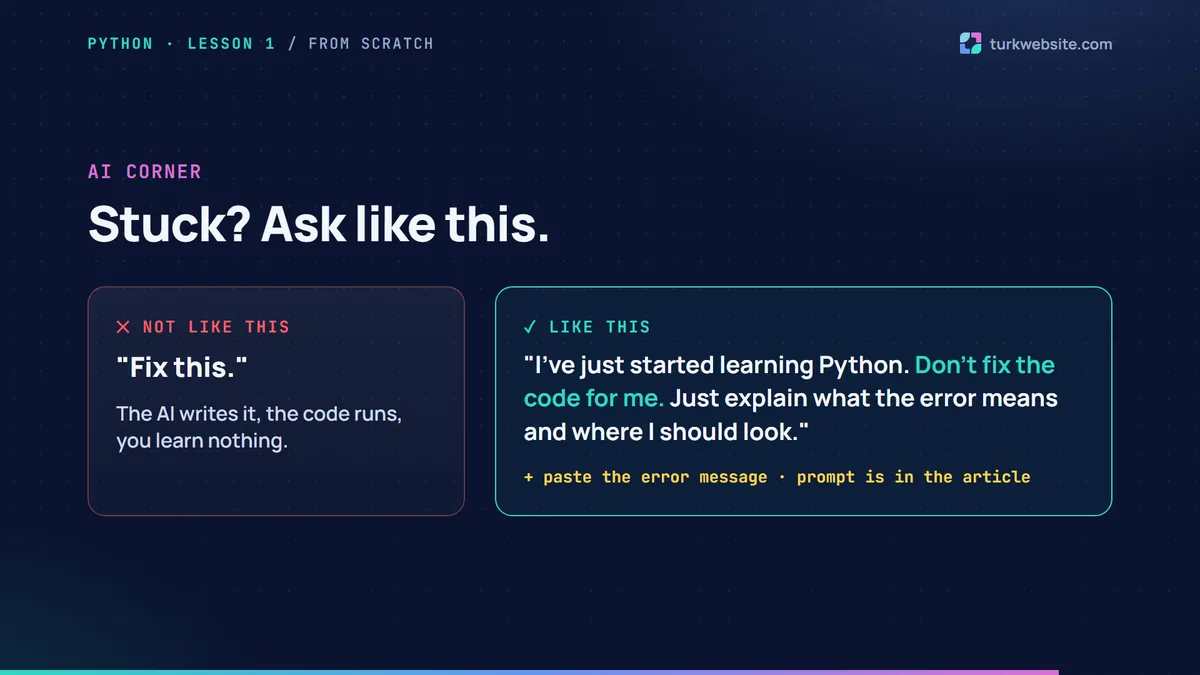
When you get stuck on an error, you can ask ChatGPT or Claude. But how you ask matters. If you say "fix this", the AI writes the code for you and you learn nothing. Paste the error message and add this:
I've just started learning Python. Don't fix the code for me. Just explain what the error means and where I should look.
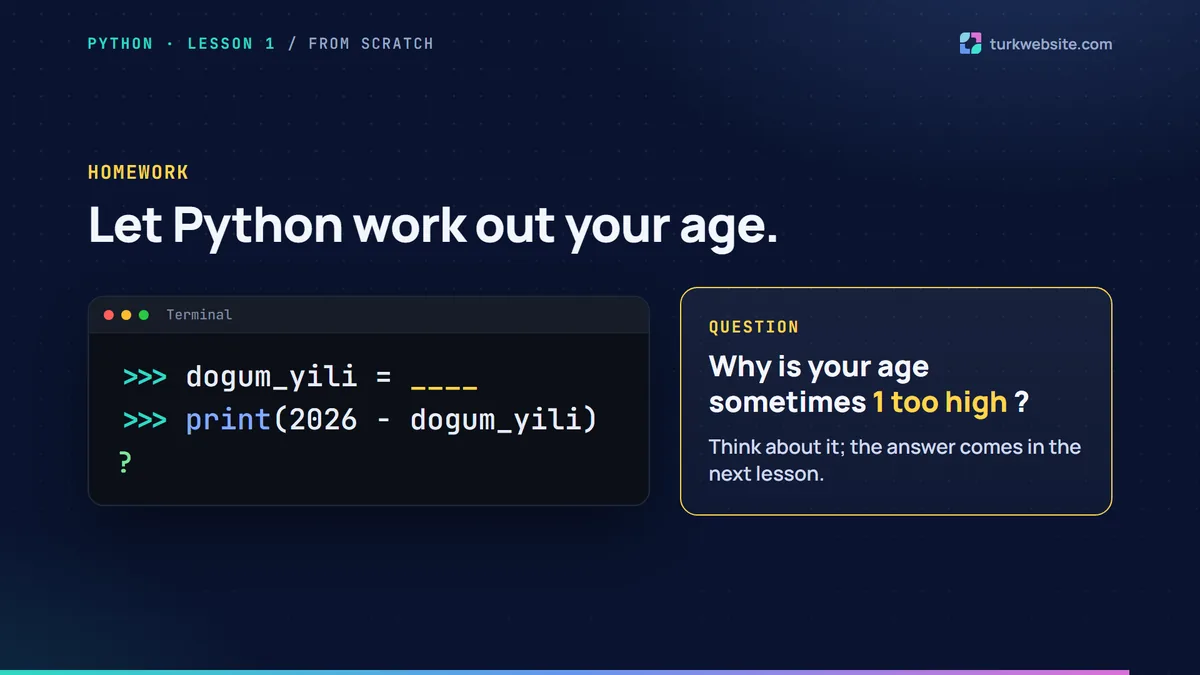
Homework: Let Python work out your age
Create a variable called dogum_yili and put your year of birth in it. Then work out your age with print(2026 - dogum_yili). You will see either your age or your age plus one. Think about why it is sometimes one too high; we answer this at the start of the second lesson.
Next in the series
- Python from Scratch, Lesson 2: Your First Python Program in VS Code: saving code to a file, why a file needs print and reading your first error line.
- TurkWebSite on YouTube: the lesson videos (in Turkish).
Learn Python, we'll build your website
Learning to code takes time; your business's online presence shouldn't have to wait. TurkWebsite builds your site with affordable web design and free hosting while you keep going with Python.