























Python from Scratch, Lesson 2: Your First Python Program in VS Code and the print Rule
The second lesson of the Python from Scratch series: we install VS Code and the Python extension, save our first .py file, find out why the file stays silent and write our first receipt program.

In the first lesson we typed commands into Python one at a time and saw the results immediately. But that screen has a problem: everything you typed disappears the moment you close the window. On top of that, if you write the same code into a file and run it, nothing appears on the screen. Why?
In this lesson we solve both. We install VS Code and the Python extension, save our first .py file, run the program both with a button and from the terminal, and finally write a small shopping receipt program. This article is the written version of the second lesson of the Python from Scratch series on YouTube. The video is in Turkish; the images are the slides from the video.
In this lesson:
- We install VS Code and Microsoft's Python extension.
- We create and save our first Python file, hesap.py.
- We learn why code in a file shows nothing on the screen, and the print rule.
- We run the program from the terminal with python hesap.py.
- We write a comment line, read the line number in an error message and write our first receipt program.
About the code: The code is exactly the same as in the video, so a few words are Turkish. hesap means calculation, fiyat price, adet quantity, urun product, Kalem pen, Toplam total and liste list. You can use English words in your own code.
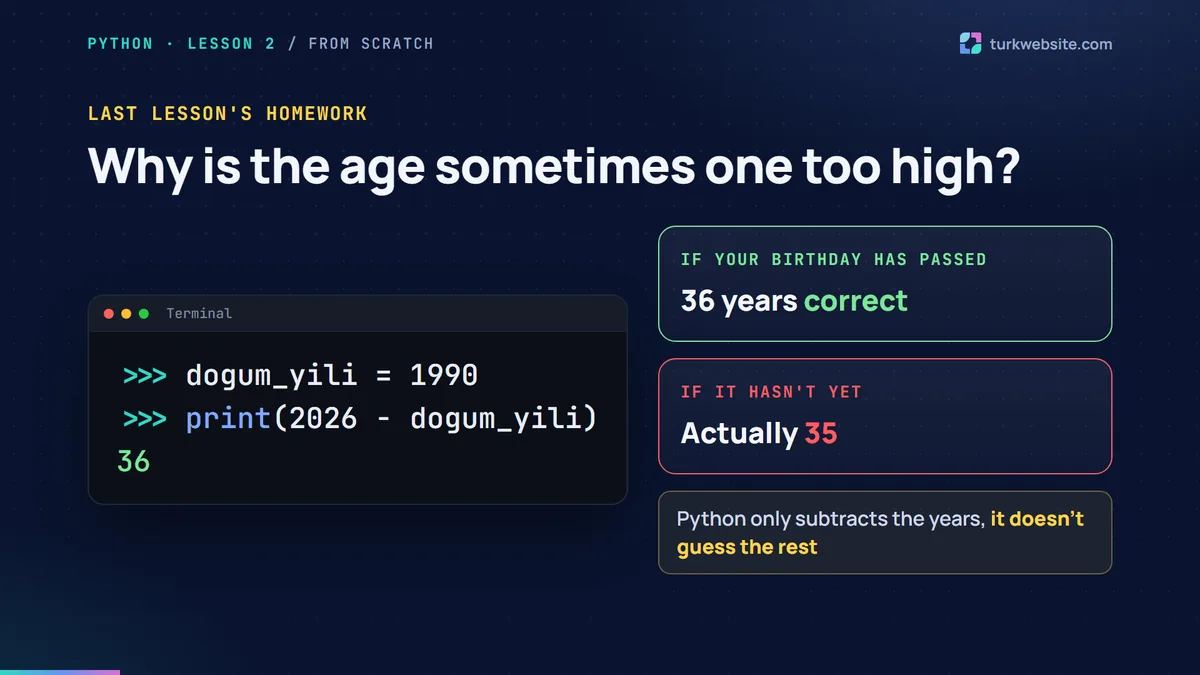
Last lesson's homework: Why is the age sometimes one too high?
In the first lesson's homework you subtracted your year of birth from 2026. Sometimes the result was your age plus one. The reason: Python only subtracts the years; it doesn't know whether your birthday has already come this year. If it hasn't, you are actually one year younger. We will solve this properly later with the date module. For now, remember: a computer does only what you tell it, it doesn't guess the rest.
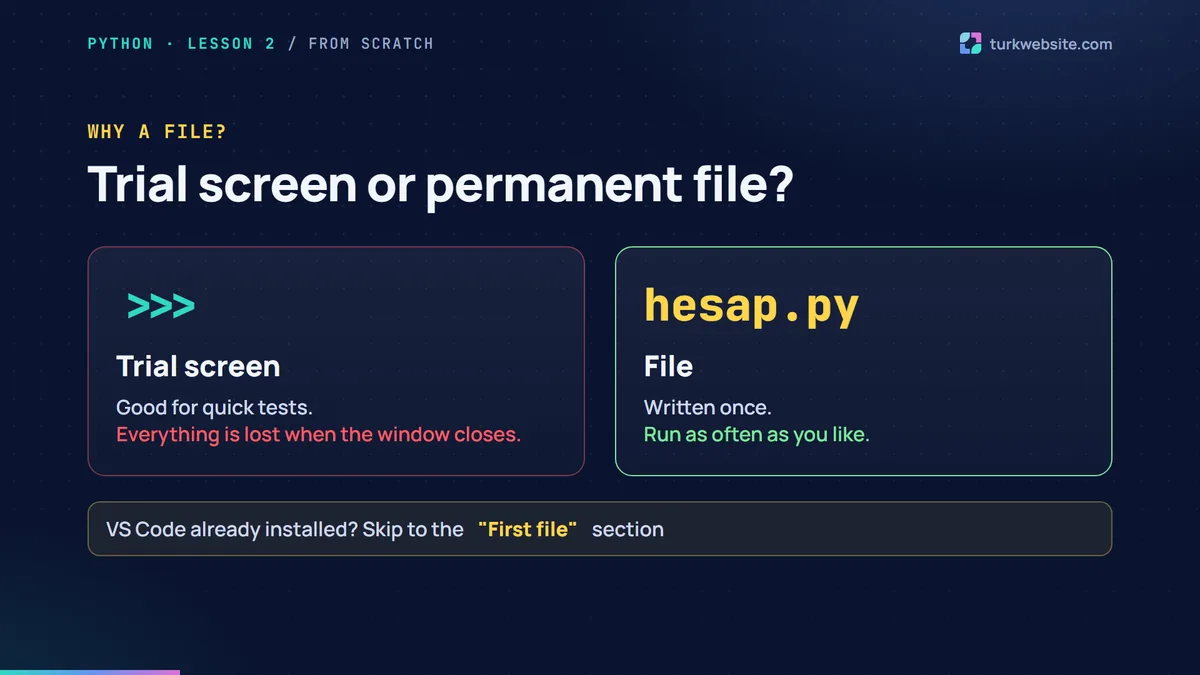
Why do we write code in a file?
The screen with three greater-than signs is great for trying things, but nothing stays. If you want to use the price calculator again tomorrow, you have to type every line again. That is why real programs are written in files: you write the file once and run it as often as you like. For that we need a code editor.
What is VS Code and how do you install it?
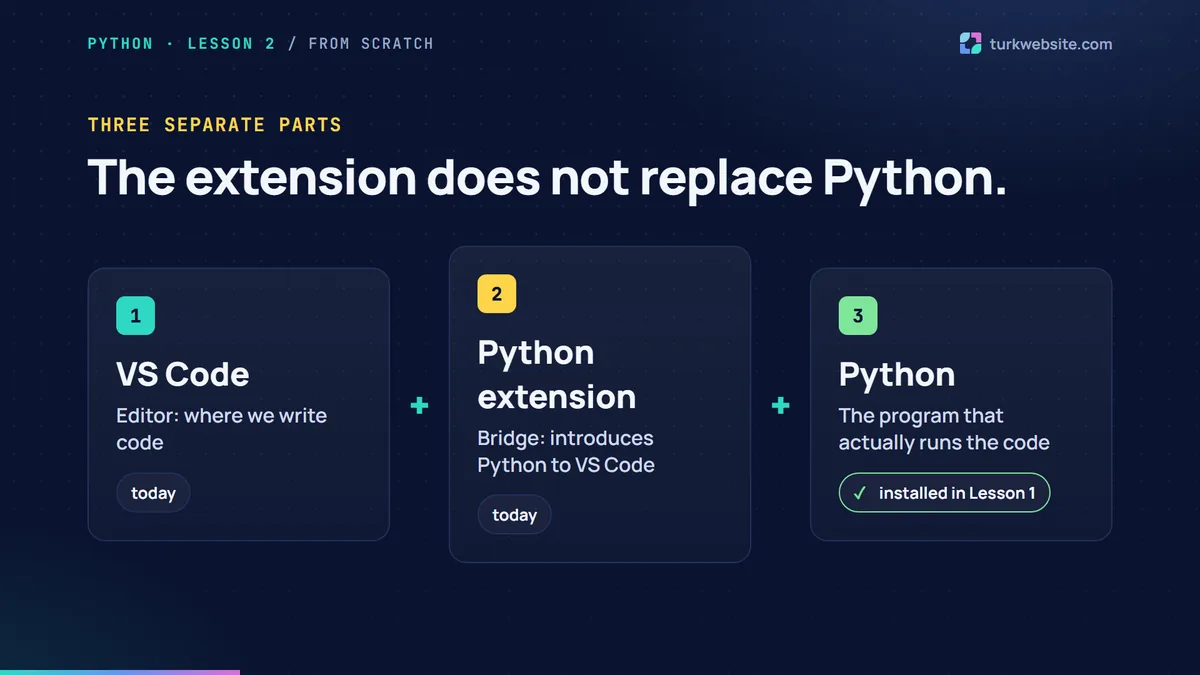
In this series we use Visual Studio Code, VS Code for short. It is free and runs on Windows, Mac and Linux. It is important not to mix up three separate parts:
- VS Code: the editor where we write code.
- Python extension: the part that introduces Python to VS Code.
- Python: the program that actually runs the code. We installed it in the first lesson.
The extension does not replace Python; the two work together.
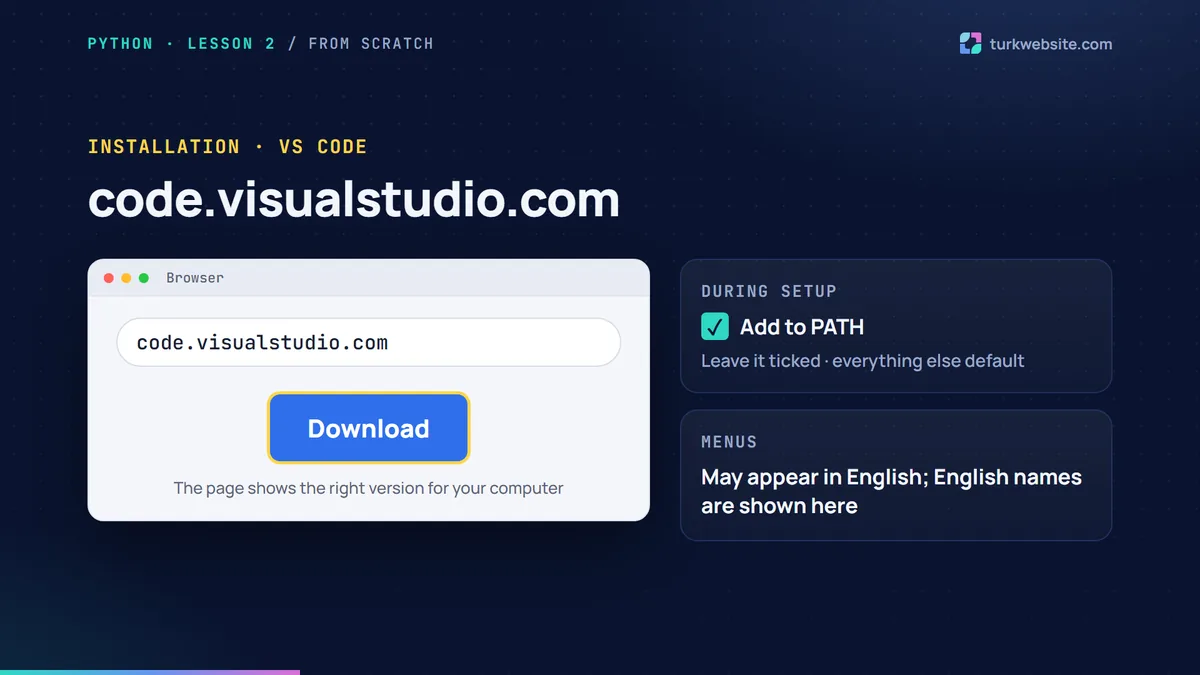
Go to code.visualstudio.com in your browser. The page shows the right download button for your computer. Download and open it, then finish the setup with the default settings. If you see an option like Add to PATH, leave it ticked; it lets you open VS Code from the terminal too.
The project folder and the Python extension
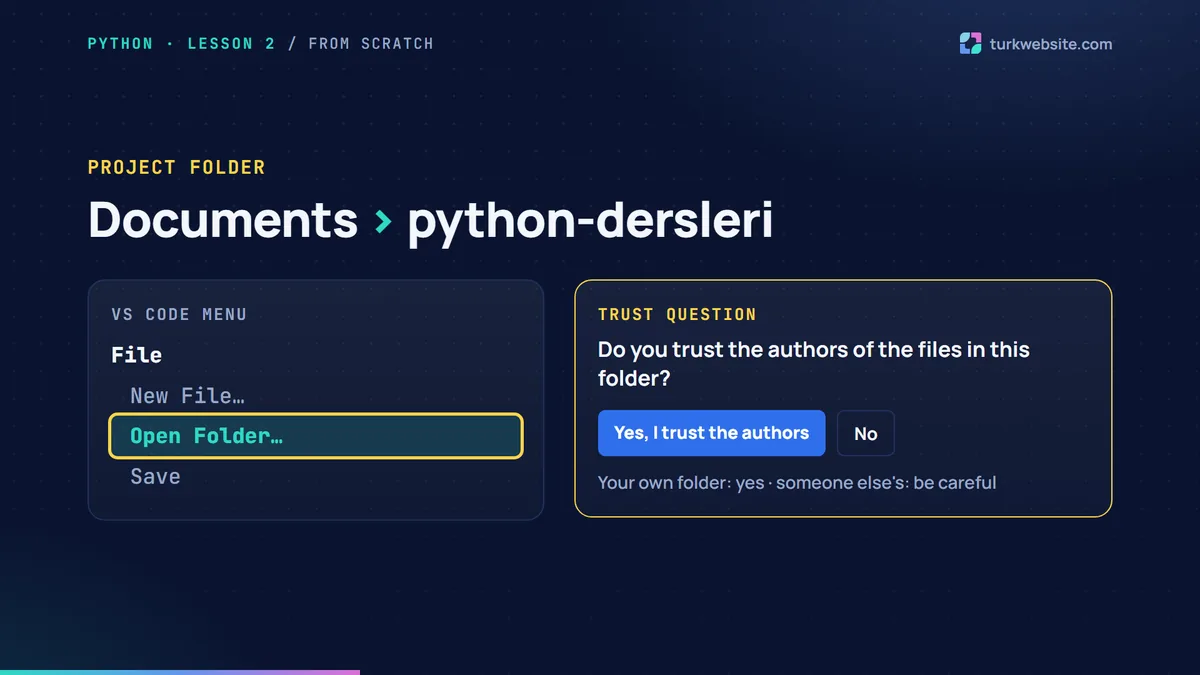
Before writing code, let's prepare a folder. Inside your Documents folder, create a new folder called python-dersleri (Python lessons); every file in the series will live here. In VS Code, choose Open Folder from the File menu at the top left and open this folder.
VS Code may ask whether you trust the authors of the files in the folder. You created the folder and there is nobody else's file in it, so you can say you trust it. Be more careful with this question for a folder that came from someone else.
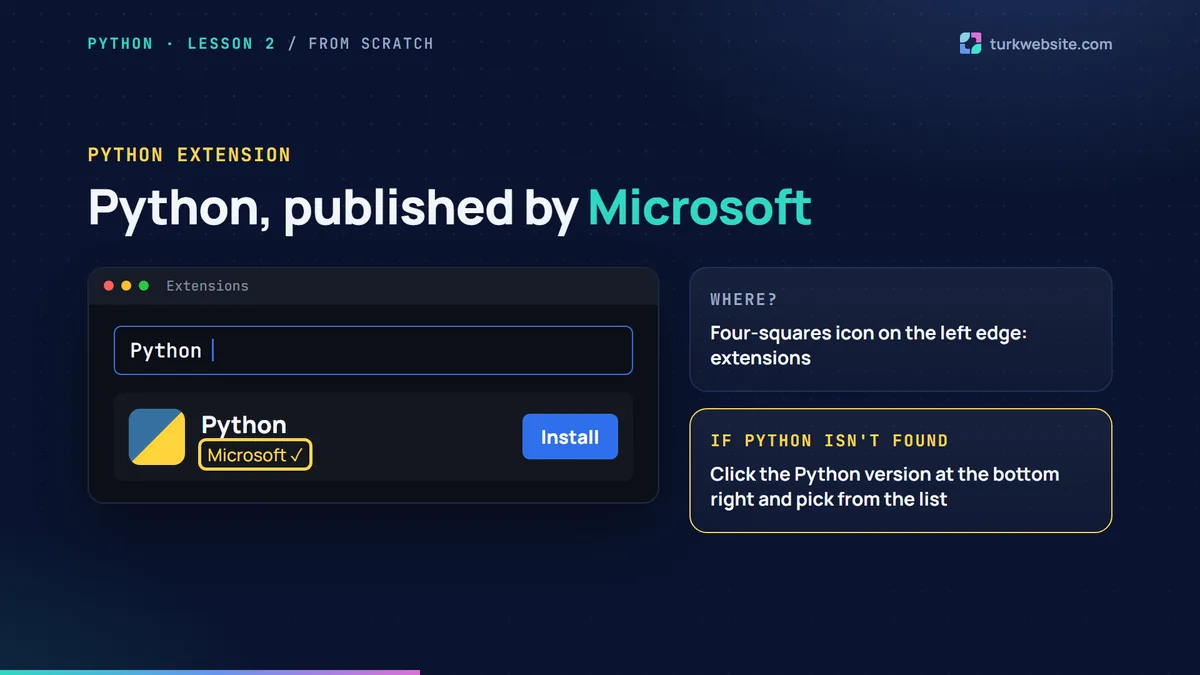
Next is the Python extension. Click the icon with four squares on the left edge; this is the extensions section. Type Python into the search box, find the Python extension published by Microsoft and click Install. Other extensions with similar names may appear, so always check the publisher.
The extension usually finds the Python on your computer by itself. If it doesn't, click where the Python version is shown at the bottom right and pick it from the list.
The first Python file: hesap.py
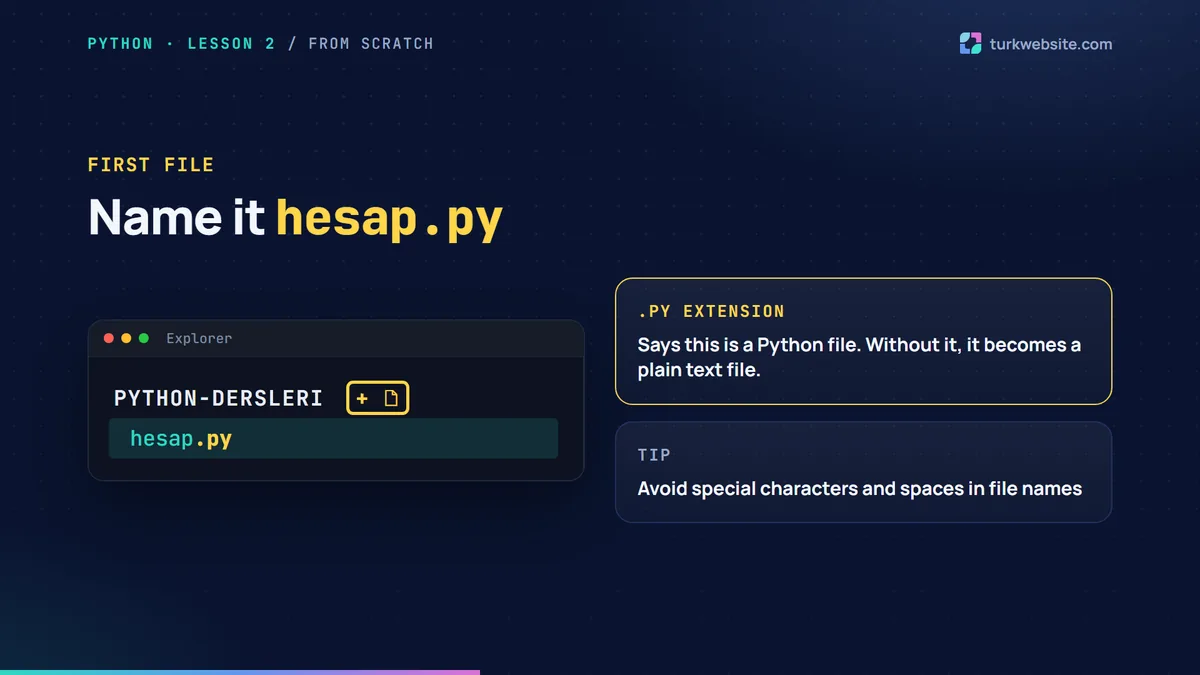
In the file list on the left, click the small new file icon next to the folder name and name the file hesap.py. The .py at the end is very important: this extension tells the computer that it is a Python file. If you forget it, the file behaves like a plain text file and the colours don't appear.
Tip: Avoid special characters and spaces in file names. It makes typing them in the terminal easier later on.
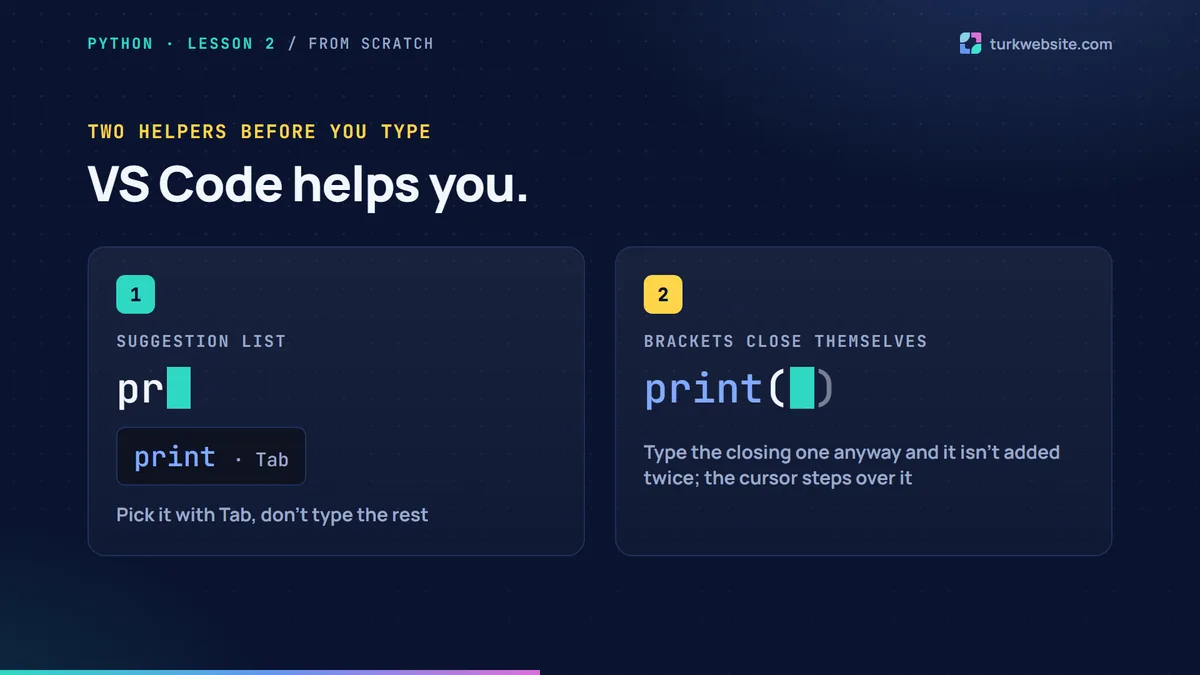
Two helpers before you start typing. VS Code shows suggestions as you type: type pr and print appears in the list; pick it with Tab and you don't have to type the rest. When you open a bracket or a quote, it adds the closing one for you; if you type the closing one anyway out of habit, it isn't added twice, the cursor simply steps over it.
Why does the file show nothing?
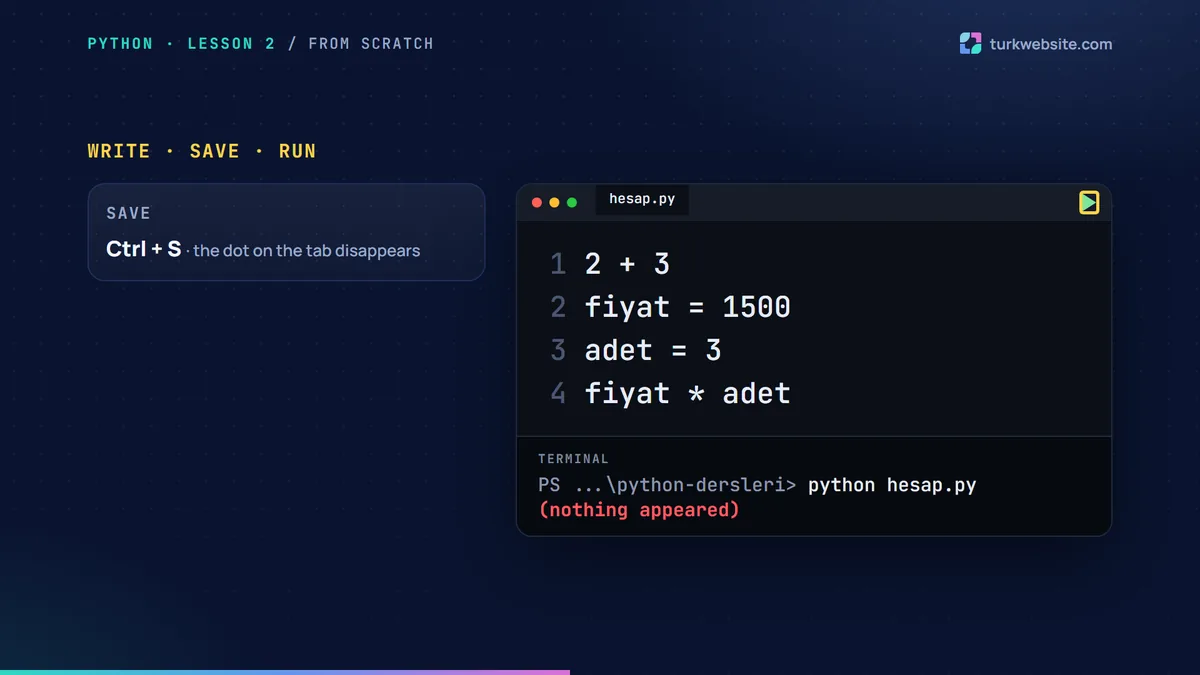
Let's write what we typed in the last lesson into the file:
2 + 3
fiyat = 1500
adet = 3
fiyat * adet
Save with Ctrl + S. If there is a white dot next to the file name on the tab, the file isn't saved yet; it disappears once you save. Now click the triangle-shaped run button at the top right. A terminal opens at the bottom and... nothing appears. Neither 5 nor 4500.
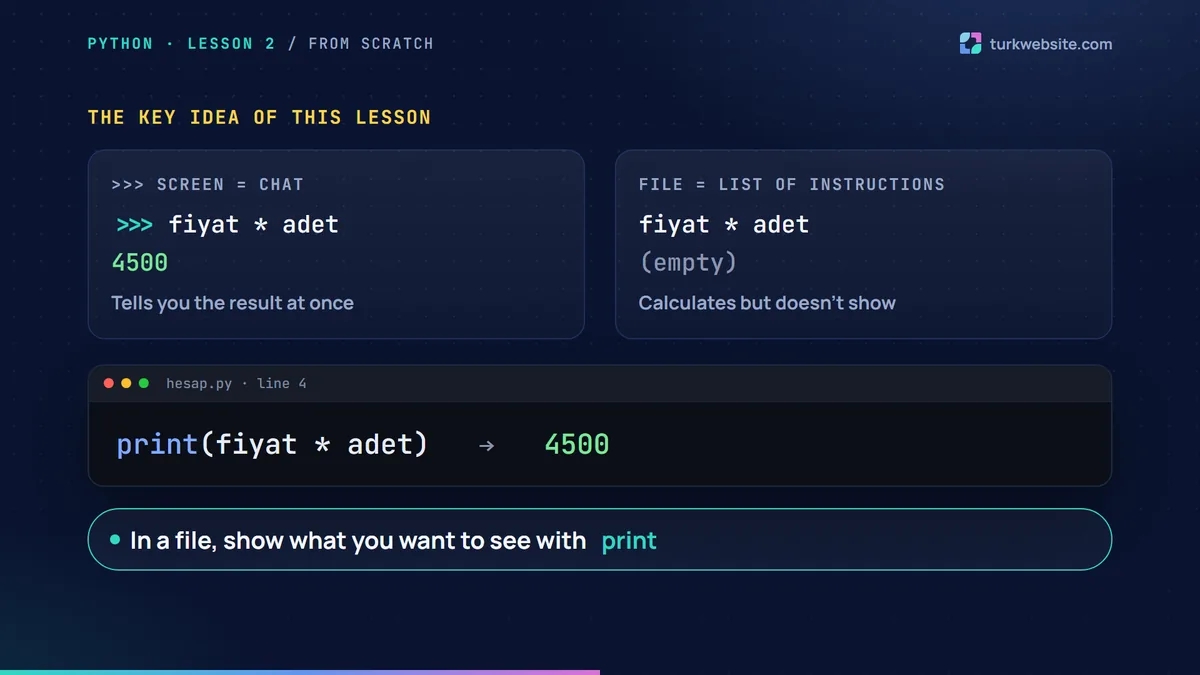
Python isn't broken. This is the most important idea in the lesson. The screen with three greater-than signs is like a chat: you type something and Python tells you the result immediately. A file is a list of instructions. Python carries them out from top to bottom, but it writes nothing on the screen unless you ask it to. It did the calculations and showed the result to nobody.
Change the last line to print(fiyat * adet), save and run again. Now it shows 4500.
The rule: In a file, use print for everything you want to see on the screen.
Running a Python file from the terminal
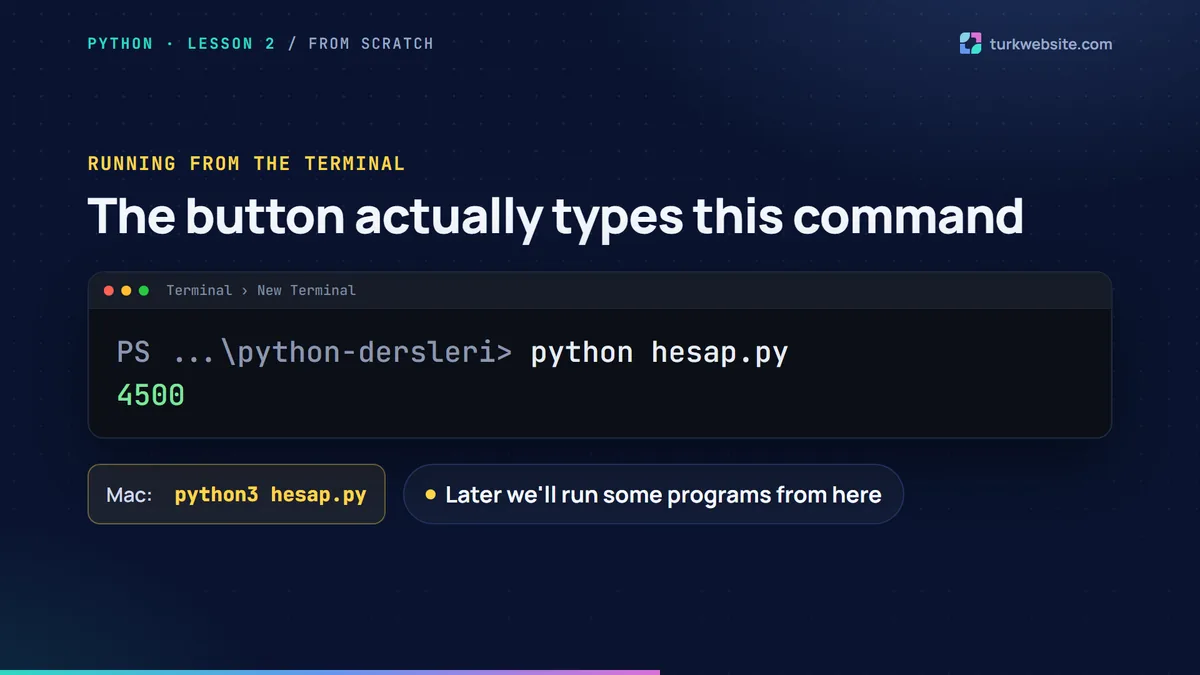
The run button actually types a command into the terminal for you. We can do the same ourselves. If the terminal isn't open, choose Terminal > New Terminal from the top menu, then type this and press Enter:
python hesap.py
4500
Same result. This is worth knowing, because later we will run some programs from the terminal rather than with the button. On a Mac, type python3 instead of python.
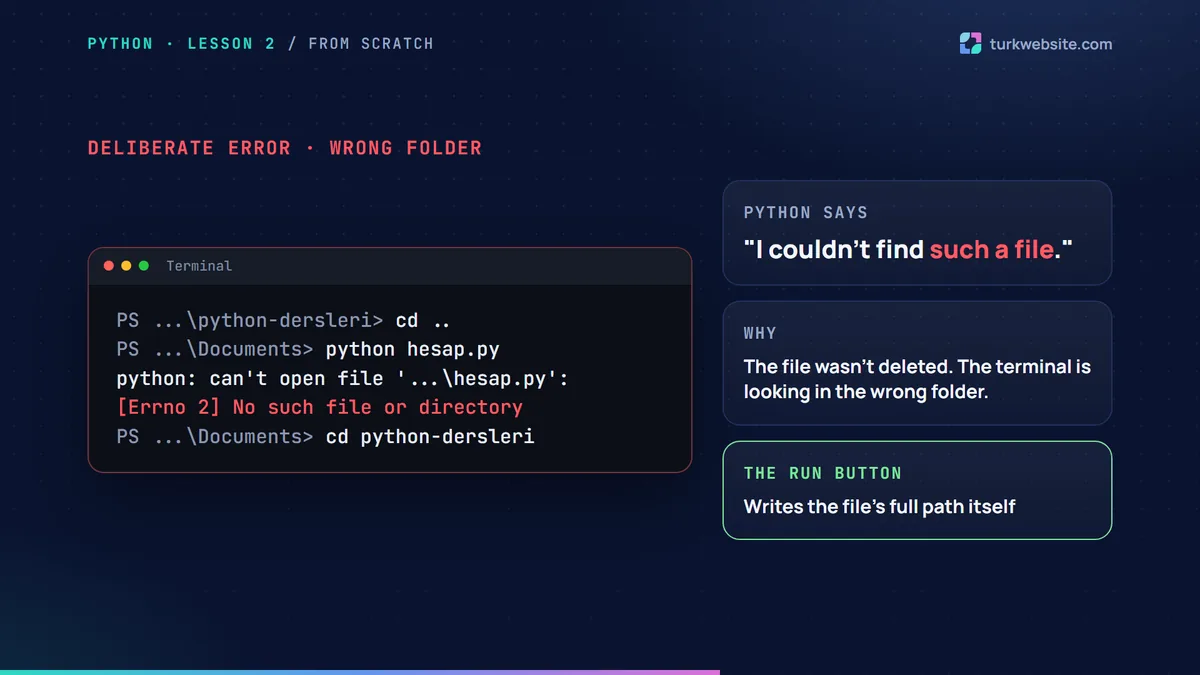
A deliberate error: "No such file or directory"
Type cd .. in the terminal and press Enter; this command moves up one folder. Type python hesap.py again. Python says can't open file and ends with No such file or directory: it couldn't find such a file. The file wasn't deleted; we are in the wrong folder. The terminal always works inside a folder and looks for the file there. To go back, type cd python-dersleri. The run button never makes this mistake, because it writes the file's full path itself.
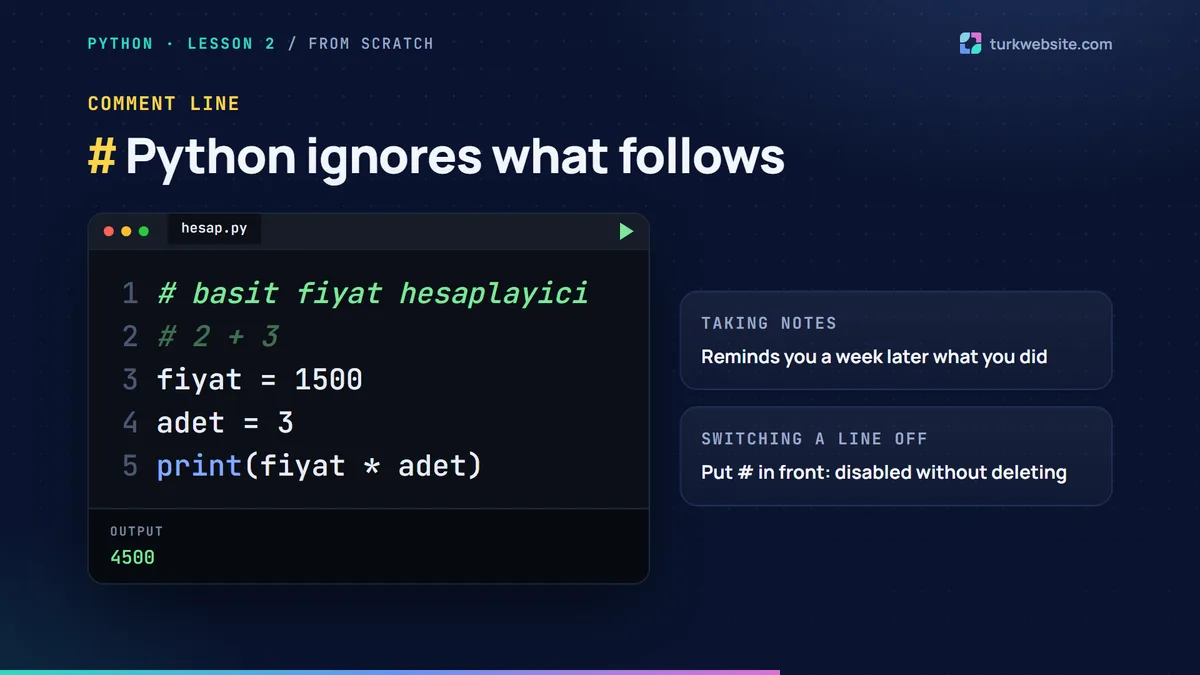
Comment lines and tidying the output
To write a note inside the code, use the hash sign (#). Python ignores everything after the hash on that line. Write # basit fiyat hesaplayici (simple price calculator) at the top of the file. Comments remind you what you did when you open the file a week later. They are also used to switch a line off without deleting it: a line that starts with a hash doesn't run.
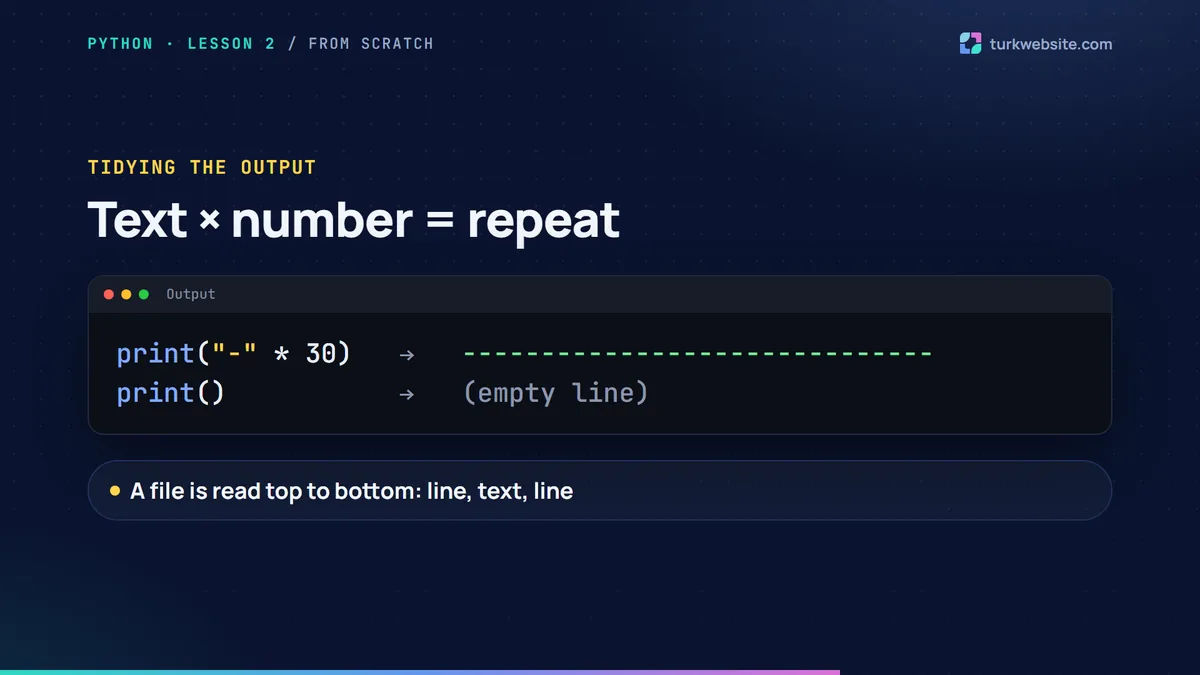
In Python you can multiply text by a number. print("-" * 30) prints thirty dashes in a row, a handy line for dividing the output. For an empty line, an empty print() is enough.
Reading the line number in an error message
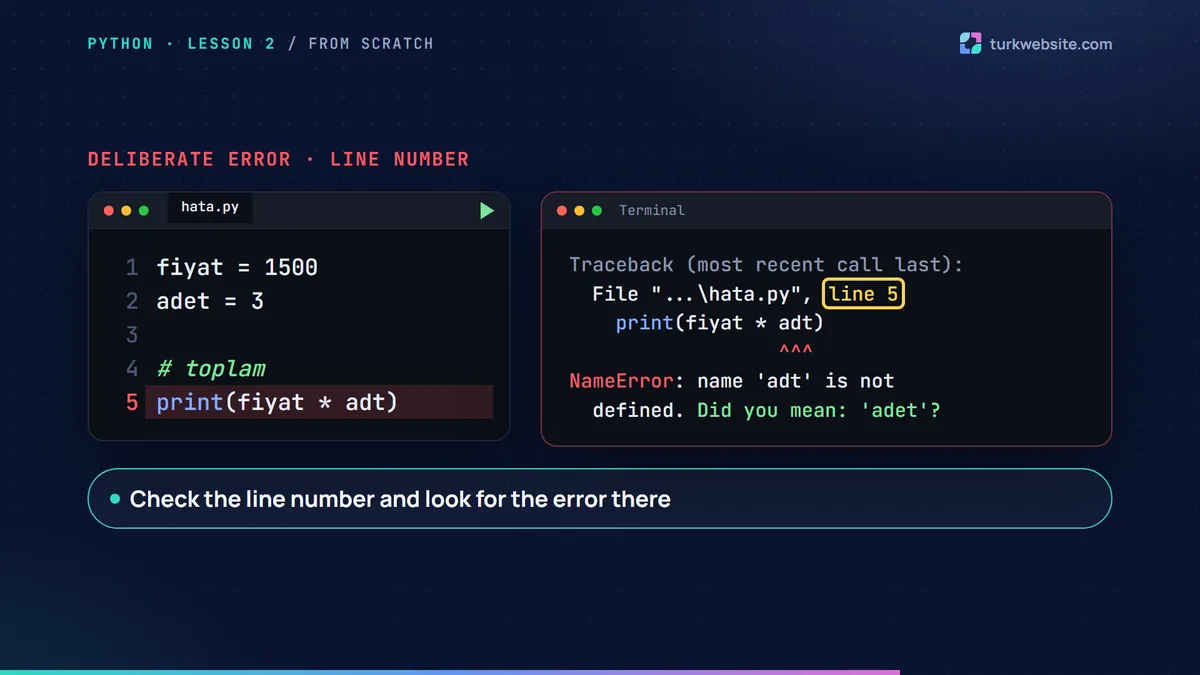
Finding errors is easier in files, because Python tells you which line the error is on. In the example file, line five says adt, with one letter missing, instead of adet. When you run it, the error message shows the file name and line 5 at the top, the faulty line below, and at the bottom NameError: name 'adt' is not defined. Did you mean: 'adet'? Python doesn't just find the error, it also guesses what you meant. Use the line numbers on the left edge of VS Code to go to line five and fix it.
Mini project: A shopping receipt program
Let's combine what we've learned into our first small program:
# alisveris fisi
urun = "Kalem"
fiyat = 25
adet = 4
print("-" * 30)
print("Ürün:", urun)
print("Fiyat:", fiyat, "TL")
print("Adet:", adet)
print("Toplam:", fiyat * adet, "TL")
print("-" * 30)
Save and run it; a neat receipt appears on the screen: Kalem (pen), 25 TL, 4 pieces, 100 TL in total. Python allows non-English letters in variable names, but we recommend not using them; that is why the variable is urun and not ürün. Inside quotes you can use any letters freely.
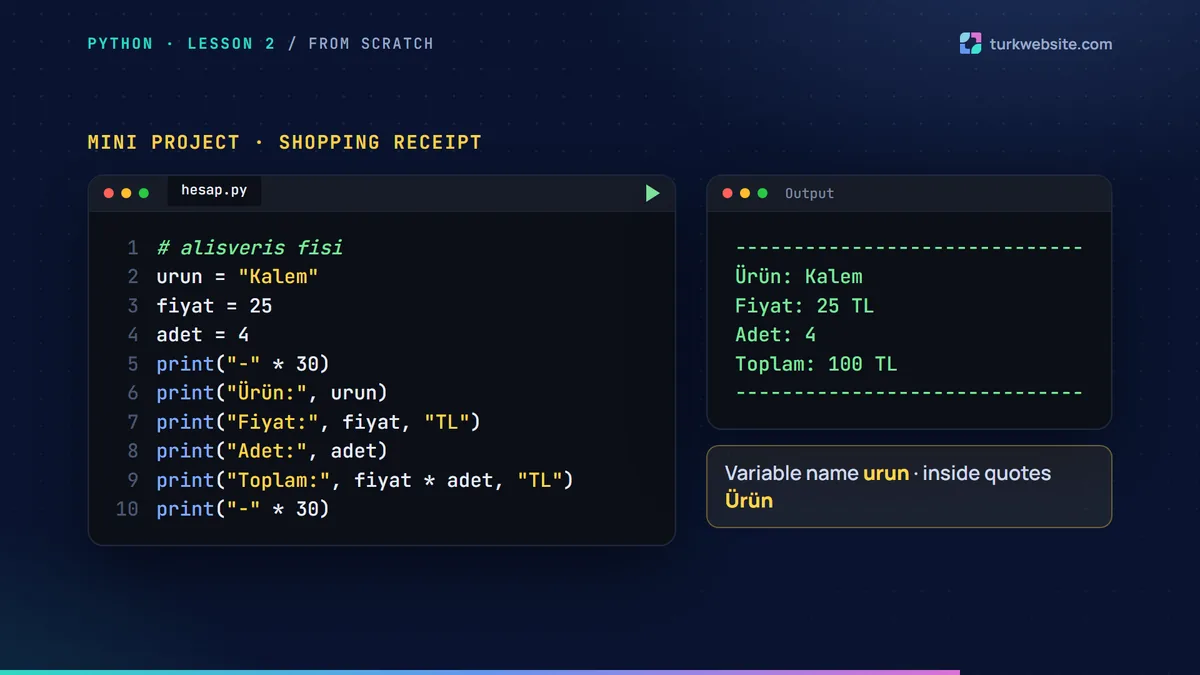
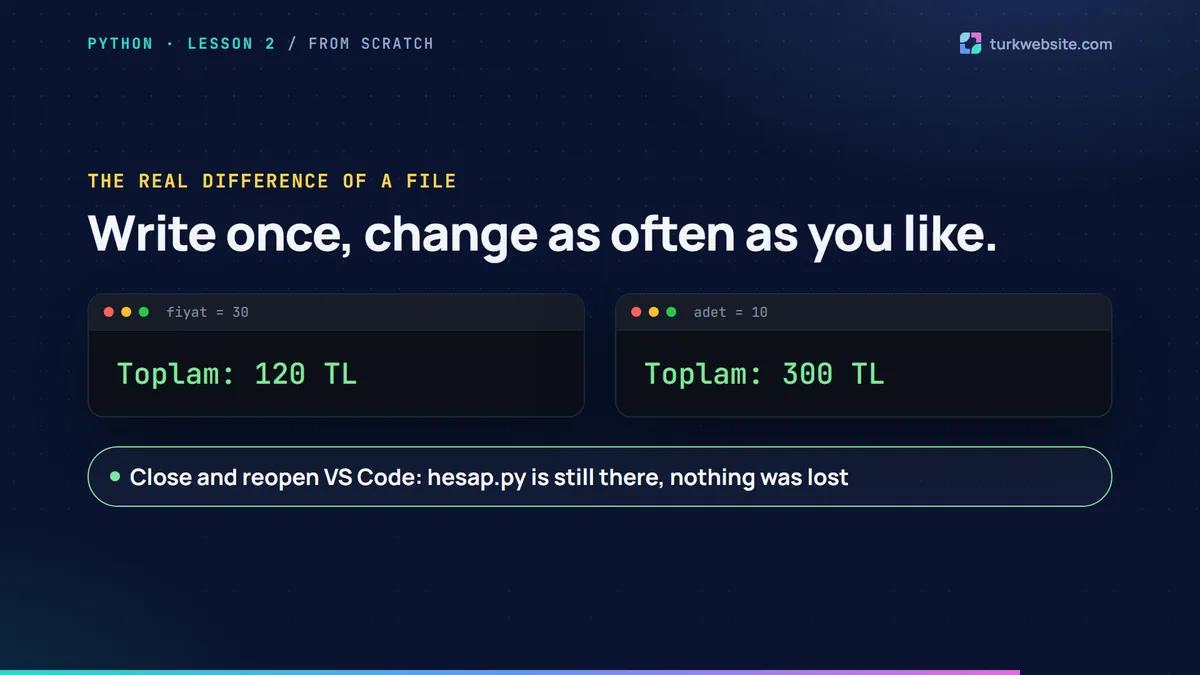
Now let's see the real difference: set the price to 30, save and run. The total becomes 120 TL by itself. Set the quantity to 10; the total is 300 TL. You wrote the code once and can change and run it as often as you like. Close and reopen VS Code: hesap.py is still there, nothing was lost.
AI corner: Get the code explained, not changed
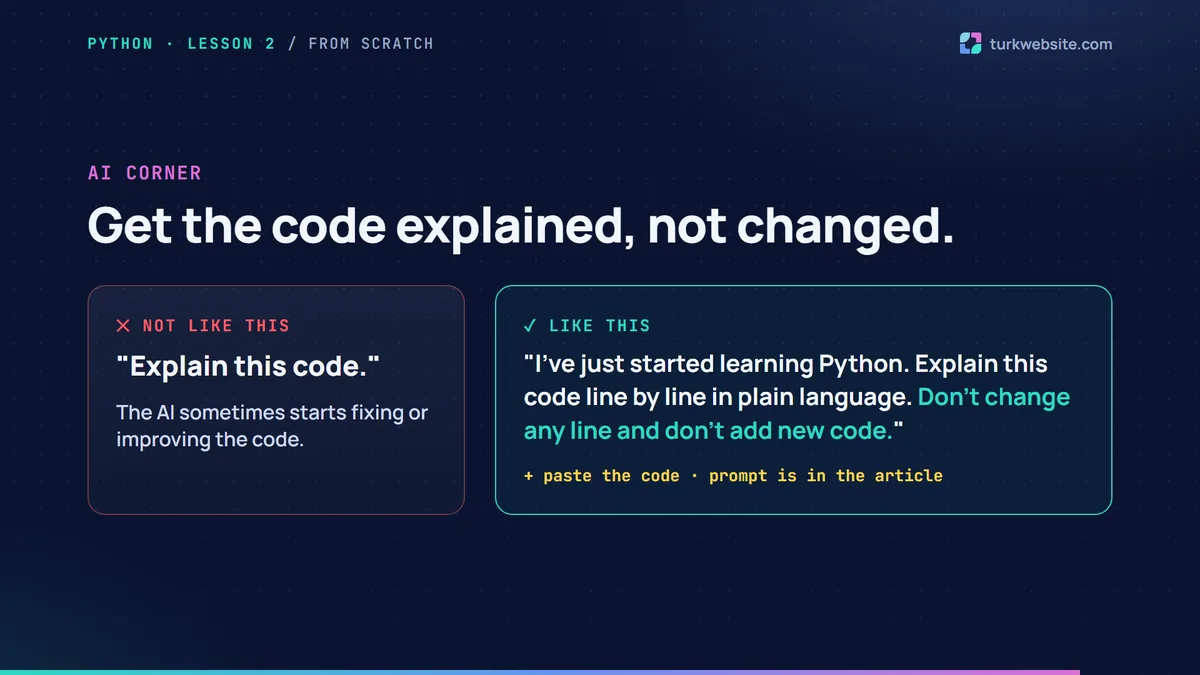
You can ask an AI to explain code you don't understand, for example a file someone else wrote. Paste the code and add this:
I've just started learning Python. Explain this code line by line in plain language. Don't change any line and don't add new code.
Don't skip the last sentence. Without it, the AI sometimes starts fixing or improving the code, and you miss what changed and why.
Homework: A three-item receipt
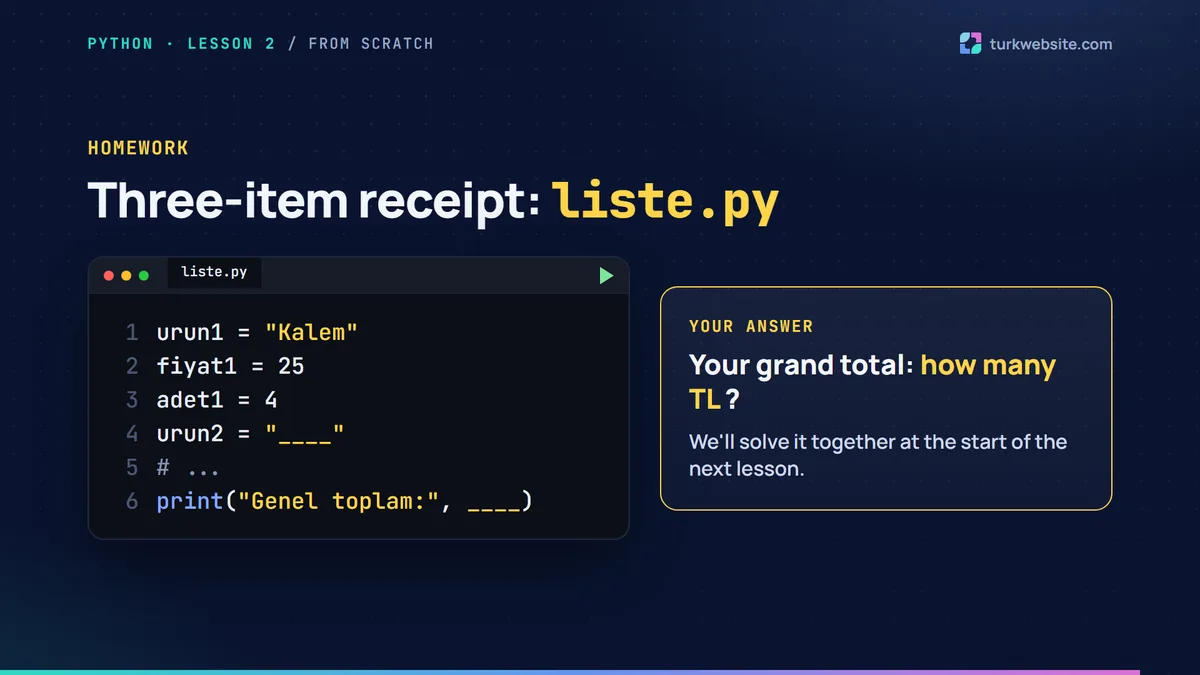
Create a new file called liste.py. Write three products in it, each with a name, price and quantity variable. To keep them apart you can use numbered names such as urun1, urun2 and urun3. Print each product like today's receipt and show the grand total at the bottom. We go through the solution together at the start of the next lesson.
The series
- Python from Scratch, Lesson 1: Installing Python and Your First 5 Commands: installation, first commands, first errors and variables.
- Next lesson: getting input from the user, the difference between numbers and text, and an error that surprises at first sight.
- TurkWebSite on YouTube: the lesson videos (in Turkish).
Learn Python, we'll build your website
Learning to code takes time; your business's online presence shouldn't have to wait. TurkWebsite builds your site with affordable web design and free hosting while you keep going with Python.