















What Is Email Warm-Up? A Safe Start With a New Domain
Sending to your whole list at once from a new domain can push your emails into the spam folder. We walk through a sample warm-up schedule based on Google's recommendations, the metrics to watch and the tactics courses teach that don't actually work.
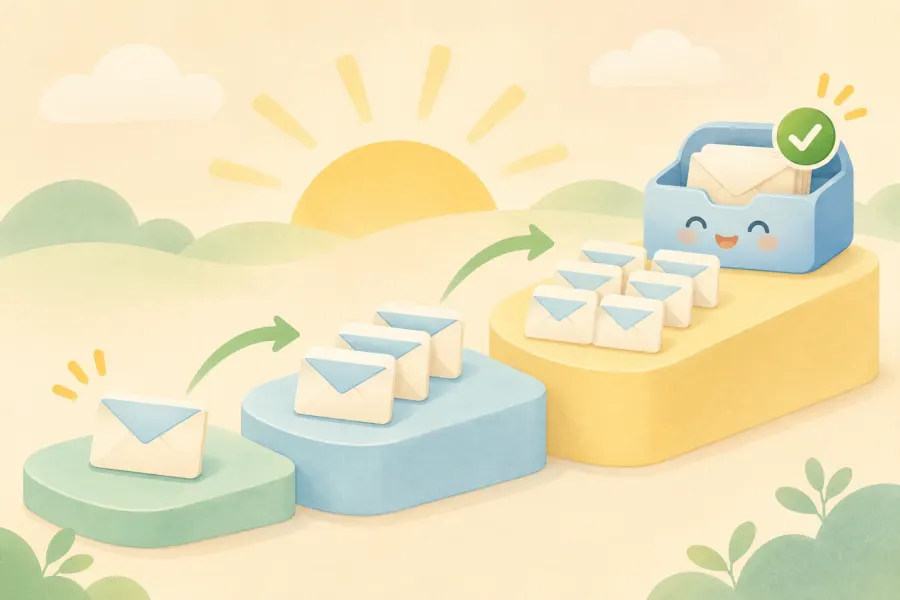
Your domain is ready, your SPF, DKIM and DMARC records are in place and you scored 10/10 in the test tool. Can you now send your first newsletter to your whole list? The short answer: No, at least not to everyone at once. A new domain has no history yet, and email providers are cautious with senders they don't know.
That is why sending starts with a "warm-up". The English source lesson gives five tips for this: a real profile photo, an email signature, back-and-forth conversations with friends, subscribing to about ten newsletters and opening them, and increasing the number of emails day by day. The lesson's goal is to send 10,000 emails a day from a Google Workspace account within a month or two.
In this guide we explain what email warm-up is, which of the lesson's tactics actually work, what Google recommends and a step-by-step plan you can apply to your opt-in list.
This article is the eighth part of our Making Money Online and Email Marketing Guide series. In the previous part we set up and tested SPF, DKIM and DMARC records.
In short:
- Email warm-up means earning the trust of email providers by gradually increasing your sending volume from a new domain.
- Google recommends starting with low volume to active subscribers, sending at a consistent frequency and increasing volume slowly without sudden jumps.
- Sender reputation is measured by how recipients react. Subscribing to newsletters or generating fake conversations does not raise it.
- You cannot send 10,000 emails a day from a Google Workspace account: the limit is 2,000 messages per user per day, and bulk promotional email violates the usage policy.
- Throughout the warm-up, monitor the spam complaint rate, bounces and domain reputation with Postmaster Tools and your newsletter service's reports.
What's in this guide?
- What is email warm-up and why is it needed?
- The lesson's warm-up tactics: which ones work?
- The right warm-up plan
- What should you monitor during warm-up?
- Mistakes that ruin a warm-up
- Conclusion and the next part of the series



What is email warm-up and why is it needed?
Email warm-up is the process of gradually increasing volume from small to large when you start sending from a new domain or IP address. The goal is to show email providers over time that you are not someone sending unwanted email but a sender your subscribers expect.
Google's sender guidelines are clear on this: Gmail tracks sending volume, recipient feedback and limits per domain and per IP address. To avoid delivery problems, it asks you to increase your sending volume slowly. How fast you can increase it depends on three things:
- How many emails you send: The bigger the volume, the slower the increase should be.
- How often you send: If you send every day instead of once a week, you can increase volume faster.
- Recipient feedback: Send only to people who signed up to receive your emails, and include an unsubscribe option in every message.
What are you warming up: the domain or the IP address?
Most small and medium-sized senders send from the shared IP addresses of services like MailerLite or Brevo. The reputation of those IP addresses is managed by the service. What you really need to warm up is your domain's reputation. If you use a dedicated IP address of your own, it needs to be warmed up separately as well; in that case, follow your service's warm-up guide.
The lesson's warm-up tactics: which ones work?
| Tactic | In the lesson | In reality |
|---|---|---|
| Profile photo | Added so the account looks real | Works: recipients recognise and trust you |
| Email signature | Added with a free signature generator | Works: shows who you are and how to reach you |
| Back-and-forth conversations with 10 people | You write to friends or your own accounts and ask for replies | Real conversations are natural; generating fake ones between your own accounts earns no reputation |
| Subscribing to 10 newsletters | So the inbox looks "natural" | Does not affect your sender reputation; reputation is measured by reactions on the recipient side |
| Increasing volume day by day | 10 on day 1, 20 on day 2, then 40, 50, 75 and 2,000 on day 16 | The principle is right, but slow the increase as volume grows and don't move on without monitoring |
| 10,000 emails a day | From Google Workspace within a month or two | Not possible: the limit is 2,000 messages per user per day, and bulk promotional email breaks the rules |
Why 10,000 emails a day from Google Workspace won't work
According to Google Workspace sending limits, each user can send at most 2,000 messages a day; for trial accounts the limit is 500. The Workspace acceptable use policy also prohibits unsolicited bulk and promotional email. As we explained in part six, business email is for one-to-one correspondence; warm up an email marketing service for your newsletter.
Why fake engagement doesn't work
In Google's guidelines, the metrics that determine reputation are on the recipient side: spam complaint rate, authentication, how easy it is to unsubscribe and changes in sending volume. Filling your own inbox with newsletters or passing emails between your accounts does not change how your real subscribers react to your emails. The same logic applies to paid "warm-up" tools that generate automatic conversations among their users: artificial signals are no substitute for the interest of your real recipients.


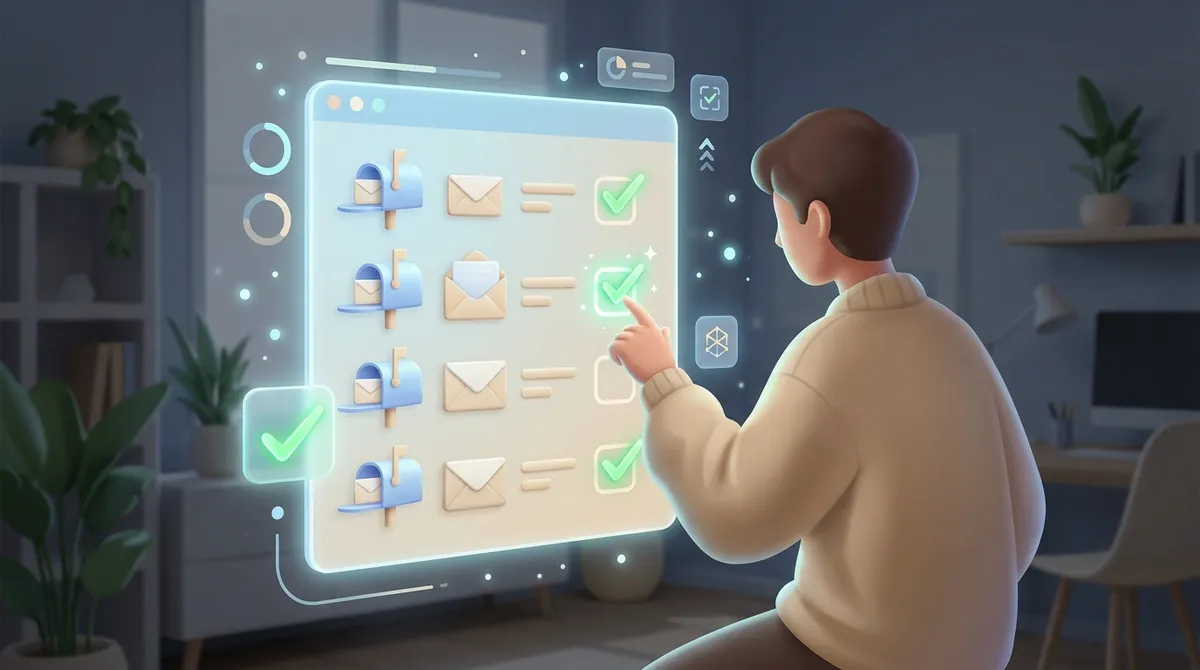
The right warm-up plan: to whom, how much, how often?
Google's recommendations for high-volume senders also frame how to warm up an opt-in list:
- Start with active subscribers. The first sends should go to people who clicked or replied to your emails in recent weeks.
- Start low and increase slowly. If you haven't sent high volumes before, avoid sudden increases. Google notes, as an example, that suddenly doubling your volume can lead to rate limiting or a drop in reputation.
- Send at a consistent frequency. Keep a regular, steady pace instead of sending emails in large batches all at once.
- Back off if problems appear. If messages start bouncing or being deferred, reduce volume until the error rate drops, then increase it slowly again.
Sample warm-up schedule
The schedule below is an example for warming up an opt-in list of 4,000 people with a new domain. Adapt it to the size of your list and your results; if the metrics aren't good at any step, stay at the previous level.
| Period | Who receives it? | Condition for moving to the next step |
|---|---|---|
| Week 1 | The most engaged subscribers who clicked or replied in the last 30 days | Almost no bounces or complaints |
| Week 2 | Subscribers who engaged in the last 90 days | Spam complaint rate clearly below 0.3% |
| Week 3 | Subscribers who engaged in the last 6 months | Domain reputation in Postmaster Tools is not dropping |
| Week 4 and after | The whole active list, on a fixed sending day | Metrics stay stable |
Don't include subscribers who haven't engaged for more than six months in the warm-up. Send them the re-engagement series we described in part four separately, once the warm-up is over.
Quick note: Warm-up is for opt-in lists. Sending a list scraped from the internet or bought slowly does not make it opt-in; it only delays the problem. We explained the right way to collect subscribers in part two.



Let's set up your sending infrastructure correctly from the start
Email addresses on your own domain, SPF, DKIM and DMARC records and device setup, all from one place. Start your warm-up on a solid foundation.
What should you monitor during warm-up?
Google Postmaster Tools
Postmaster Tools shows the spam rate, domain reputation, authentication results and delivery errors for the email you send to personal Gmail accounts. To set it up, you add your sending domain (the domain in your DKIM signature or your SPF domain) and verify it with a DNS record. The data only covers messages sent to @gmail.com addresses; if most of your subscribers use Gmail, it is still a strong indicator.
Your newsletter service's reports
- Bounces: Should be very low during warm-up. If they rise, your list contains outdated or invalid addresses.
- Spam complaints: Gmail's limit is 0.3%. Aim to stay well below that.
- Unsubscribes: A sudden rise shows the content or frequency doesn't match expectations.
- Clicks and replies: Real engagement is the true fuel of a warm-up.
Your own test addresses
Add your own Gmail and Outlook addresses to your list for every send. See with your own eyes whether the email lands in the inbox, the Promotions tab or the spam folder.



An illustrative example: 4,000 people at once in the first newsletter
This story is fictional and meant to illustrate the method; names and numbers are examples.
Bora prepared his first newsletter from a new domain for a list of 4,000 people who had registered for his workshops and agreed to receive it. He sent it to the whole list at once. Some of the messages going to Gmail addresses were deferred, and some landed in spam instead of Promotions; because the emails weren't opened, sales from the first campaign fell far short of expectations.
On his second attempt, Bora split the list by engagement. In the first week he wrote only to the 400 people who had attended a workshop in the last month, and the following week he added those who had clicked in the last three months. After every send he checked Postmaster Tools and the bounce report.
By the end of the fourth week he could send to the whole active list without problems. The list was the same; the only thing that changed was that he introduced himself to the providers slowly and consistently.
Mistakes that ruin a warm-up
- Sending to the whole list on the first day with a new domain
- Doubling volume every day without looking at the metrics
- Starting the warm-up with an old list that hasn't been emailed for a long time
- Trying to warm up a business email account for bulk sending
- Trying to earn reputation with fake conversations and newsletter subscriptions
- Frequently changing the sending domain or email format during warm-up
- Not lowering volume when bounces and deferrals begin



Related pages and links
- Part 7 of the series: How to set up SPF, DKIM and DMARC
- Part 6 of the series: How to set up email with your own domain
- Part 4 of the series: How to clean an email list
- Part 2 of the series: How to build an email list from scratch
- Business email setup: SPF, DKIM and DMARC configuration
- SMS and email notification integration
Conclusion: warm-up is not a trick, it's an introduction
Email warm-up means introducing yourself to providers slowly and consistently. Steps like a profile photo and a signature build trust with recipients, but what really determines reputation is how your real subscribers react to your emails. Start with the most engaged subscribers, send at a steady pace, increase volume without sudden jumps and check the metrics at every step.
What's in part nine of the series?
The next lesson in the source course covers automating sending with a tool that "sends 10,000 emails a day". In the next part we'll look at bulk sending and email automation tools, what such promises really mean and how to set up automation with an opt-in list. You can follow the TurkWebsite blog for our other articles.
Your website, email and newsletter on the same domain
Let's set up your signup page, blog and business email together. Get affordable web design from TurkWebsite; as long as your site stays on our server, you don't pay for hosting. The domain is registered in your name and you pay for it.
Note: Email providers' rules and services' limits may change; check the current guidelines before putting this into practice. Last updated: 3 November 2026.