



















How to Use Google Gemini in 2026 | Complete Beginner's Guide
Learn how to use Google Gemini in 2026 with this beginner-friendly guide. Explore Gemini Live, Nano Banana, Gmail, Google Docs, AI image generation, practical prompts, and productivity tips.

Need to tidy up an email? Trying to make sense of a long document? Or perhaps you're putting together the first draft of a proposal for a client. Google Gemini can help with all of these everyday tasks. You don't have to memorise every feature. The trick is to find the ones that genuinely save you time.
When you first open Gemini, the screen looks refreshingly simple. There's a message box and a handful of icons. Yet you can use that same space to research a topic, write, review documents, generate images and have a spoken conversation. We'll start with the basics, then move into practical examples from work and daily life. Along the way, we'll also clear up the difference between Gemini and Google's AI-powered Search features.
What's in this guide?
- What is Google Gemini, and what can it do?
- Getting started with Google Gemini
- Understanding the Gemini interface
- How to write better Gemini prompts
- Everyday ways to use Gemini
- Working with PDFs, images and documents
- Talking to Gemini Live
- Creating and editing images with Nano Banana
- Using Gemini in Gmail
- Writing with Gemini in Google Docs
- Analysing data with Gemini in Google Sheets
- Google Calendar, Drive and workflows
- Google AI Mode vs Gemini
- Searching with Google Lens
- Editing photos with Google Photos AI
- Researching more effectively with Chrome and Search
- Reminders, directions and videos
- Privacy, security and incorrect answers
- Free and paid Gemini plans
- Gemini for businesses, creators and websites
- Ready-to-use Gemini prompt examples
- A seven-day plan for learning Gemini
What Is Google Gemini and What Can It Do?
Google Gemini is an AI assistant you can talk to through text or voice. In supported experiences, it can also interpret images and files. It answers questions, suggests ideas, drafts content and makes lengthy material easier to understand. With the right account and settings, Gemini can also work alongside other Google apps.
Think of Gemini as more than an internet search box. Ask, "I want to open a restaurant. Where should I start?" and it can draw up a checklist. Then say, "Adjust this plan for a budget of 100,000 Turkish lira." Gemini can build on the earlier conversation. Follow up with "Now prepare a social media plan for the first month," and it can use the restaurant idea as context.
That doesn't make Gemini a replacement for an accountant, lawyer or doctor. Instead, use it to speed up your first draft or organise your thinking. Then check the facts and make the decisions yourself. The assistant helps; you're still in charge.
What can you use Gemini for?
- Learn unfamiliar subjects at your own level and ask for simpler explanations.
- Draft emails, proposals, announcements, job posts, presentations and blog articles.
- Summarise long texts, pick out key points and compare information.
- Describe objects and text in images or explore ideas for new visuals.
- Turn meeting notes into task lists and organise work processes.
- Help with certain tasks inside Google apps when supported integrations are enabled.
Consider a small business that receives the same customer questions every day. People ask about pricing, delivery times, returns and what's included. You can use Gemini to draft clear, consistent replies. Later, those answers might become part of a business process automation. Gemini isn't the automation system itself; it helps you plan the content and workflow behind it.
How to Get Started with Google Gemini
On a computer, open the Gemini web app and sign in with your Google account. On your phone, try the supported Android or iOS app. Some devices also connect Gemini with system-level assistant features. However, the interface and available tools won't look identical for everyone. Your location, age, device and subscription may affect what you see.
What if you don't have a Google account?
Start by creating one. Enter your account details, choose a strong, unique password and set up recovery options if Google offers them. You'll be able to use the same account for services such as Gmail, Drive and Google Docs. That's why it's worth checking the security settings before you begin.
Keep business documents separate from personal files. If you work with a team, give each person their own account and decide who should have access to each document. Company email and permissions matter too. If you need help with this side of things, take a look at our website maintenance and technical support services.
What should your first message say?
Pick one small, real task instead of starting with a vague greeting. For example: "I have a job interview next week. Give me 10 interview questions and a short checklist for evaluating my answers." If the first response isn't quite right, give Gemini a follow-up instruction. After a few exchanges, you'll usually get something much closer to what you need.
Getting to Know the Gemini Interface
The message box is where most conversations begin. Type a question, an instruction or a passage you want Gemini to review. Depending on your account, you may also see options for attaching files, using the microphone, selecting tools or generating images.
You can usually return to earlier conversations through your chat history. That's useful when you're continuing the same project. For an unrelated task, though, start a fresh chat so old instructions don't interfere. Under individual answers, you may find options to copy, share or rate the response. Google may move these controls as the interface evolves.
When a reply feels too long, say, "Summarise this in four paragraphs." If it's too general, narrow the example: "Make it relevant to a marble countertop manufacturer in Ankara." You can refine a request without starting the whole conversation again.
How to Write Better Google Gemini Prompts
When AI gives you a disappointing answer, the problem is often an unclear request rather than the tool itself. "Write me something good" leaves too many questions unanswered. Who is the reader? What do you want the text to achieve? How long should it be? Gemini can't reliably guess all of that.
Imagine telling a designer, "Make something for me." Now compare that with: "Create a warm, mobile-friendly, one-page introduction for our new coffee shop." The second brief gives the designer a direction. Prompts work in much the same way.
What makes a useful prompt?
First, describe the task in one sentence. Then explain your audience, the information Gemini should use and the format you want. Add limits for length, tone or scope when they matter. It's also wise to say, "Don't invent numbers you don't know." For important work, ask the assistant to flag claims that need checking.
"We run a small business in Ankara that makes kitchen and bathroom countertops. Write an introduction for our website's homepage. Our audience includes homeowners and architects. Keep the tone professional but warm. Aim for 90–120 words. Mention the quotation process, custom measurements and installation. Don't invent guarantees or delivery times."
This prompt does more than ask for a paragraph. It identifies the reader, tone, length and boundaries. You don't need a huge prompt every time. Just include the details that would change the answer.
Don't expect a perfect first answer
After Gemini produces a draft, keep editing. You might say, "The opening sounds too much like an advert. Make it friendlier." Or try, "Explain the technical terms in paragraph three." You can even ask, "Rewrite this as a real customer question." That back-and-forth turns a generic answer into something that suits your needs.
Editing is especially important when you're publishing content online. A useful article should answer the reader's actual question. Stuffing a page with search terms rarely makes it more helpful. For a closer look at the relationship between strong content and technical optimisation, read our guide to fixing SEO issues with AI.
Practical Ways to Use Gemini in Everyday Life
You don't need to spend hours learning AI tools. In fact, it's easier to start with something you already do each day. Rewrite a confusing email, learn a new concept or compare product features. A few small experiments will teach you more than a long list of features.
Make a difficult subject easier to understand
"What is an SSL certificate?" is a perfectly reasonable starting question. But you can get more useful advice by adding context: "I run a small business and have no technical background. What does an SSL certificate do? How can I check whether it works on my website? Explain with examples." Now you're asking for knowledge you can actually use.
Compare your options before making a decision
Buying a computer might involve comparing dozens of specifications. Tell Gemini your budget, what you'll use the computer for and which features matter most. Ask it to organise your priorities. Then check current prices, stock and technical specifications with the seller or manufacturer. An AI-generated comparison table isn't proof that every number is up to date.
Make your own writing clearer
If you're drafting a complaint email or job application, try writing your thoughts first. Then ask Gemini: "Keep my meaning, make this easier to read and avoid exaggeration." This approach helps preserve your personality. You're improving your own message instead of replacing it with a generic one.
How to Analyse PDFs, Images and Documents with Gemini
Some Gemini experiences let you upload files. Rather than treating this as a way to store documents, use it to find specific information. This is particularly helpful with long PDFs. Instead of saying only "Summarise this," tell Gemini exactly what you're looking for.
Suppose you're reviewing a 40-page contract. Start with: "Find the clauses about payments, termination and responsibilities." Then add: "Show the page number for each clause and separate your interpretation from the document's wording." That should make the review more focused. For legal conclusions or decisions, however, consult a qualified professional.
A simple workflow for long PDFs
- Upload the document and ask for its table of contents or main subjects.
- Identify the section you need: "Find the parts about privacy and data protection."
- Ask Gemini to put statements from the document and its own interpretations in separate columns.
- Check every critical passage against the relevant page of the original file.
With photographs, you can ask Gemini to identify objects, explain the structure of a table or comment on a design. However, low-resolution images and tiny text can cause mistakes. Always double-check measurements, serial numbers and amounts of money against the original.
What Is Gemini Live? How to Talk to AI Naturally
Gemini Live lets you have a two-way conversation with the assistant using your voice. Instead of typing everything, you can speak naturally, interrupt a response and ask for a different example. On supported devices, camera or screen-sharing features may also be available. Your account settings and permissions determine which options you can use.
Imagine you have an important client presentation coming up. Open Gemini Live on your phone and say, "Act like my client and ask me questions about my website project." Answer aloud and ask Gemini to point out anything unclear. It's a useful way to practise sales conversations, prepare for exams or work on a foreign language.
What should you watch out for with Gemini Live?
Avoid reading sensitive information aloud in public. Before sharing your camera or screen, check what other people might see. Consider whether you have permission to show the documents or people involved. Also, remember that two phones may offer different features, even if both run Gemini.
How to Create and Edit Images with Gemini and Nano Banana
Gemini can help you create images from scratch or make changes to existing pictures. Google's image models, including those known as Nano Banana, make it easier to explore different visual ideas. Available models and generation limits may vary by account.
Say you're preparing an Instagram image for a new café. Rather than asking for "a picture of coffee," describe the lighting, camera angle, colour palette and intended platform. Try: "Two cups of coffee on a wooden table, soft morning sunlight, realistic photography, vertical framing, no text or logo." Those details give the model a much stronger starting point.
How do you ask Gemini to edit an image?
Start by uploading the photo you want to improve. For a product image, you might say, "Keep the product's shape and colour exactly the same. Only change the background." If the first version misses the mark, follow up with smaller adjustments such as "Soften the shadow" or "Move the camera farther back."
Be careful with commercial product images. Don't add accessories that aren't included or make materials look more premium than they really are. Otherwise, the customer may expect something different from what you sell. When you're building a professional e-commerce website, accurate product details and visuals need to work together.
Can AI-generated images replace website design?
A beautiful homepage mock-up isn't the same as a functioning website. Gemini can suggest layouts and help develop content. But contact forms, responsive behaviour, loading speed and security still need proper development. Technical SEO requires attention too. You can see how those pieces fit together in our website design services.
How to Use Gemini with Gmail
Email is one of the easiest places to see the value of an AI assistant. If you answer similar customer questions every day, even a little help with drafting can save time. However, Gemini features inside Gmail depend on your account and subscription. Some users have an assistant panel, while others can work with Gmail through connected features in Gemini.
Drafting emails and preparing replies
Imagine receiving a message that says, "We need a digital catalogue with 30–40 photos. Can our customers view it on WhatsApp?" Give Gemini the customer's question and your confirmed service details. Ask for a short draft. Before sending it, check the price, delivery date and scope. Then make the language sound like you.
"Write a short, professional reply to this email. Explain that a digital catalogue can be shared as a PDF or through a link. Don't invent a price. Ask how many photos and pages the client needs, and whether we should prepare the text. Keep it warm but concise."
If the same customer has sent a long chain of messages, you can also ask Gemini to identify decisions, unanswered questions and action items. Just pay attention to privacy settings. When customer data is involved, follow your organisation's policies for AI tools.
Check these details before sending
Make a habit of checking four things. Is the recipient's name correct? Is the price final? Did you attach the promised file? And did any internal notes accidentally make their way into the message? This quick review lets you benefit from AI without passing avoidable mistakes to the customer.
Writing and Editing with Gemini in Google Docs
Google Docs is an online writing and collaboration tool. On supported accounts, Gemini can help you draft text, summarise documents, simplify a passage or rewrite a section. That makes it useful for proposals, internal documents and articles.
One common mistake is sending an AI-written document without reading it carefully. That's especially risky with contracts and client offers. A polished sentence can still promise something your business doesn't provide. So check the scope, commitments and factual details before you share anything.
Build a client proposal together
Start by listing the essential sections: purpose, scope, deliverables, timeline, revisions and fees. Then ask Gemini to interview you about each one. As you answer, it can develop the draft. This reduces the chance that it will fill gaps with invented details.
For example, a professional corporate website proposal should clearly state the number of pages. It should also explain who supplies the copy and images, which integrations are included, how revisions work and what the client receives. Gemini can organise that information, but you should set the binding terms yourself.
Improve what you've already written
Instead of saying "Make this paragraph more persuasive," give a more precise instruction: "Keep the meaning, remove repetition and break up long sentences." You can add "Avoid overly promotional adjectives" as well. These small changes often make a blog post feel more natural.
Using Gemini to Organise and Analyse Google Sheets Data
Sales figures, stock records and expense lists can get messy as a business grows. Google Sheets helps you organise them. In compatible accounts, Gemini can suggest formulas, propose a table structure and help with certain kinds of analysis. The quality of the results still depends on the data and instructions you provide.
Suppose you sell products through an online marketplace. You track purchase costs, marketplace commissions, shipping and packaging. Simply asking for "a profit spreadsheet" may not be enough. Explain which columns you need and whether the commissions include VAT or other taxes. Wrong assumptions can lead to misleading reports.
"Design an e-commerce order tracking sheet with columns for order date, product, quantity, sale price, purchase cost, marketplace commission, shipping and packaging. Suggest a formula for net contribution. I'll calculate taxes separately, so don't assume they're already included. Show one sample row and explain the formula."
Gemini can propose a formula, but test it against a few real orders. Do the totals add up? Are all values in the same currency? Have you accounted for refunds? Don't make financial decisions based on an unchecked sheet.
If you want your spreadsheet to receive information automatically from other systems, you'll need an integration. That's where API and integration solutions come in. An API transfers data between systems; Gemini can help you interpret or organise that data.
Working with Google Calendar, Drive and Other Apps
Gemini's connections with Google apps can be particularly useful at work. If your account supports them, you may be able to find information in Calendar or Drive. For example, you could look for a meeting date or search for a note inside a document. You can also ask for a task list. The available tools depend on your plan, region and administrator permissions.
Asking Gemini a question doesn't automatically grant it unlimited access to every Drive file. Review which apps you've connected and what permissions you've approved. If you're using a company account, check the sharing settings on team documents and follow your organisation's security rules.
An example: planning a meeting
Start with: "I have a client presentation next week. Make me a preparation checklist." If Calendar integration is available, you can also explore scheduling assistance. But check the actual calendar to confirm that an event exists. A sentence in a chat is not a substitute for a verified calendar entry.
Think beyond individual tasks
Saving a few minutes in each app is helpful. The bigger opportunity is recognising repetitive processes. A customer asks for a quotation, you record the details, alert a colleague and send a follow-up reminder. You can connect those steps through bots and automation. Gemini can help draft the messages and rules that make the workflow clearer.
Google AI Mode vs Gemini: What's the Difference?
Google AI Mode and Gemini use related AI technologies, but they serve different purposes. Gemini works primarily as a conversational assistant for writing, research, files and images. AI Mode is a Google Search experience built around more complex questions and follow-up research. Availability may differ by country and account.
In a traditional search, you might type "historic coffee shops in Istanbul" and open the results one by one. With AI Mode, you could ask a more detailed question: "Find three quiet, historic coffee shops I can reach by public transport." The system may combine different pieces of information into an answer. Still, verify addresses and opening hours against current business listings.
Gemini, AI Mode and AI Overviews compared
| Tool | Main purpose | Example request |
|---|---|---|
| Google Gemini | Conversation, writing, files and image-related tasks | "Rewrite this message for two different customer groups." |
| Google AI Mode | Multi-step research and follow-up questions within Search | "How should I compare these products for my needs?" |
| AI Overviews | AI-generated summaries shown for some searches | Getting a quick overview of a factual question |
This distinction also matters to website owners. People no longer rely only on a list of search links. They also ask AI systems for direct answers. To explore what this means for content, read our guide to Google AI Mode and content structure. You can also look at how AI Overviews may affect organic traffic.
How to Search with a Photo Using Google Lens
You don't need a Gemini conversation for every visual search. Google Lens is a separate tool that lets you search using an image. You can use it to identify a plant, look for similar products, read a sign or translate text in another language.
For example, photograph a piece of furniture and use Lens to find similar designs. But don't assume that matching appearances mean matching materials or dimensions. Two products can look almost identical while having very different specifications.
On a computer, Chrome can offer ways to search using an image. On a phone, you may use the Lens icon. The exact steps depend on the app and camera permissions. Before uploading somebody else's photograph, make sure it doesn't reveal private information.
Editing Pictures with Google Photos and AI
Google Photos helps you organise, search and manage your photos and videos. With suitable settings, you can also back them up. Some AI editing features let you remove unwanted objects or adjust the framing of a photo. However, not every device or account includes the same editing tools.
Keep the original file before you make changes. Then experiment with removing distracting objects in the background. Adjust the lighting or crop the image for a different platform. Remember to check the final quality as well. A picture may look attractive on screen and still have too little resolution for its intended use.
A small but important image SEO detail
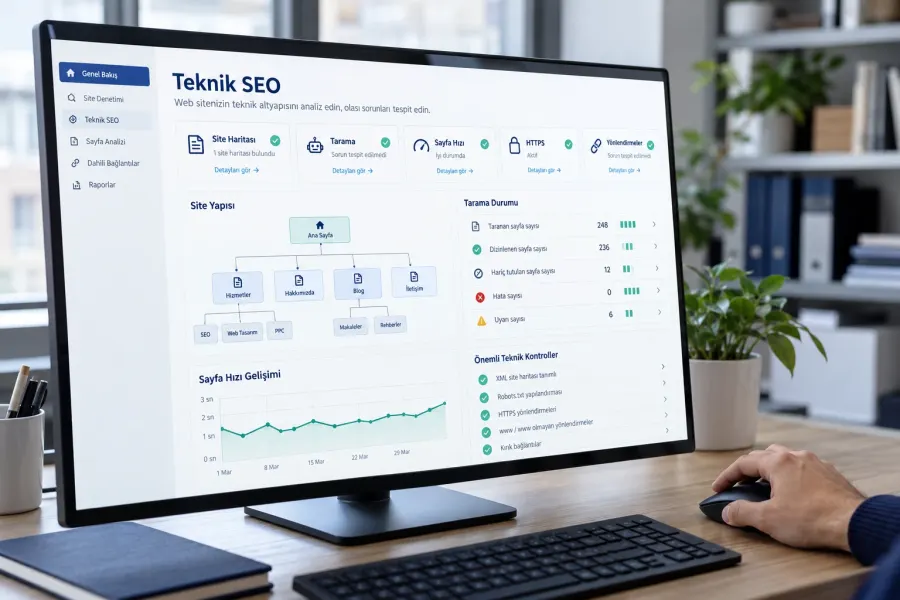
When uploading images to your website, choose descriptive file names and write alternative text that reflects what the image actually shows. This supports accessibility and helps search engines understand the content. For a photograph of a marble countertop installation, describe the work itself rather than repeating unrelated keywords. For more advice, see our technical SEO setup page.
How to Research More Effectively with Chrome and Google Search
Your browser habits can make AI-assisted research much smoother. Keep Chrome tabs and bookmarks organised. Save downloaded files somewhere you can find them later. For instance, use one tab to develop ideas with Gemini and another to check the original document or manufacturer's page.
Chrome's address bar can open websites and run searches. But not every search result is the same. Learn to distinguish sponsored links from organic results. When a short answer includes an important claim, open the underlying page and check it. AI can help you start faster; it doesn't remove the need to verify information.
Three useful research habits
First, make your searches specific. Instead of "website," try "what should a mobile-friendly corporate website quotation include?" Second, check publication dates, especially when the topic changes quickly. Third, confirm important claims with more than one reliable source.
Want to know how Google discovers web pages in the first place? Read our guide to search engine crawling and robots.txt. Learning how to search is valuable, but helping people find your own website matters just as much.
Using Gemini for Reminders, Directions and Videos
On a phone, Gemini can sometimes help with more than questions and answers. If supported apps and permissions are connected, you may be able to create tasks, add calendar items, get help with directions or find videos. Some actions rely on other Google services, so capabilities differ between devices and accounts.
Be specific when creating reminders
Don't say only "Remind me of something tomorrow." Include the task and time: "Remind me tomorrow at 2:30 p.m. to send the catalogue draft to the customer." Then open the relevant task or calendar app to confirm it was saved. This extra check matters for payments, appointments and deadlines.
Planning routes and journeys
You can ask Gemini for help deciding how to travel between two appointments. For example: "Should I use public transport or drive between these two places in Ankara?" It may offer a general comparison. However, traffic, service schedules and opening hours change quickly. Always check the current route in a maps app.
Finding videos and music
When you're learning something new, ask Gemini which terms to search for in beginner-friendly tutorials. It may help you discover relevant YouTube content through supported features. Before following a video, check what it covers and when it was published. Technical tutorials can become outdated as software changes.
Google Gemini Privacy and Security: What Should You Avoid Sharing?
It's easy to share too much when chatting with an AI assistant. Avoid entering customers' identity numbers, payment card details, banking passwords or somebody else's medical information. If you need help reviewing a document, remove or mask personal details first. Share only the parts that matter for the task.
How to protect your Google account
- Use a strong, unique password for each service.
- Enable two-step verification or passkeys when supported.
- Keep recovery information current and review unfamiliar sign-ins.
- Remove app connections, browser extensions and sharing permissions you no longer need.
- Revisit your account's activity and privacy settings regularly.
Your account may provide settings for Gemini activity, conversation history and connected apps. Read what these controls actually do before changing them. If you're using a company-managed account, follow the business's data protection policies.
Why does AI sometimes give the wrong answer?
Gemini can sound confident even when a claim is wrong. It might invent a product feature, misunderstand a legal rule or mention something that never appears in the document you uploaded. These mistakes are often called AI hallucinations. They can happen during web research, document analysis or ordinary conversation.
Reduce the risk by giving clear instructions. Try "Say when you don't know," "Separate facts from your interpretation" or "Don't guess numerical values; flag claims I should verify." For healthcare, law, tax and important pricing decisions, get advice from an appropriate professional.
Is Google Gemini Free? When Does a Paid Plan Make Sense?
Google offers free ways to use Gemini. More advanced models, higher usage limits and certain image or Workspace capabilities may require a paid subscription. Plan names, prices and availability change, so a fixed price in a beginner's guide could quickly become misleading.
You don't necessarily need a subscription on day one. Explore the free features and see what actually saves you time. If you regularly work with lengthy documents, create many images or need particular Workspace features, compare the plans available to your account.
Also, don't assume that every feature shown in a video is available to you. Language, country, age, device and experimental access can all affect the experience. Base a purchase decision on the two or three tasks you'll really use, not on a long list of features you might never open.
How Can Gemini Help Small Businesses and Content Creators?
For a small business, attention can be just as scarce as money. One person may answer customer enquiries, prepare quotations, update the website and plan social media posts. Gemini can reduce the effort needed to brainstorm and produce first drafts, leaving more time for the work that requires experience and judgement.
Build a content plan around real customer questions
Imagine you sell custom-made furniture in Ankara. Begin with the questions customers ask most often. Can they order custom dimensions? Does the price include assembly? Which woods do you use? How does delivery work? Ask Gemini to group those questions and suggest a blog topic for each group. This gives you a content plan based on genuine customer needs.
Next, create an editorial calendar. But don't publish the suggested topics without reviewing them. Add your own product photos, accurate measurements and experience from the workshop. Answer the questions your customers actually raise. Originality isn't just different wording; it's the useful detail that only your business can provide.
Can Gemini help with SEO?
Yes, it can suggest keywords, headlines, article structures and explanations of technical SEO concepts. However, don't assume Gemini automatically knows your site's current rankings or search traffic. Check search volumes and real performance using appropriate measurement tools.
Start with the reader's intent. Someone searching "What is a corporate website?" wants information. Someone searching "I need a corporate website built" may be ready to buy a service. These people need different kinds of pages. That's why relevant internal links between articles and service pages matter. Our guide to planning a business website explores this process in more detail.
Help your brand appear in AI-powered search
As AI-assisted search becomes more common, businesses face a new challenge. People aren't looking for answers only in traditional results; they're also asking assistants such as Gemini. No single tag or trick can guarantee visibility in AI answers. Clear content, consistent company information and a technically accessible website all help create a stronger foundation.
For a more technical overview, read about AI search visibility. Our article on the difference between AEO and GEO explains another part of this change. And to understand how people already discover your website, consider monthly SEO management and performance tracking.
Prepare landing pages and advertising copy
Before writing a service page, think about the visitor's questions. Someone looking for a digital catalogue might want to know the number of photos, sharing options and delivery time. Gemini can help turn those questions into a page outline. Yet effective landing page design involves more than copy. Forms, mobile usability and conversion tracking matter as well.
The same is true for a corporate website. Attractive wording means little if pages load slowly, feel insecure or make it difficult to request a quotation. If an existing site needs improvement, look into website redesign rather than assuming the text is the only problem.
Useful Gemini Prompts You Can Copy and Adapt
Use the following prompts as starting points. Replace anything in square brackets with your own details. And as always, keep confidential information and other people's personal data out of your requests.
Learn a subject from scratch
"Explain [topic] to someone who knows nothing about it. Start with three essential concepts, then give a real-life example. Define technical terms as you introduce them. Finish with five short questions to test what I've learned."
Write a customer message
"We run a business in [industry]. A customer asked [question]. Write a reply using only these confirmed facts: [details]. Keep it short enough for WhatsApp. Sound friendly, professional and direct. Don't promise prices or delivery times we haven't confirmed."
Generate better blog ideas
"List 15 genuine problems customers may face before buying [product/service]. Group them into learning, comparison and purchase-decision stages. Suggest one article title, target reader and original example for each. Avoid repeating the same keyword unnecessarily."
Improve an existing blog post
"Review the following article as an editor writing for [audience]. Identify repetition, unanswered questions and vague phrases. Don't add information that isn't in the draft. First give editorial notes, then rewrite only the paragraphs that need improvement in a more natural style."
Write a product description
"Here are the verified details for this product: [dimensions, material, colour, intended use]. Write a clear description based on these facts. Start by explaining who the product suits, then list its features. Don't invent guarantees, health benefits or accessories that aren't included."
Analyse a spreadsheet
"Review the sales table below. First identify missing or inconsistent data. Show total sales, expenses and net contribution separately. Explain the formula behind each calculation. Don't mix currencies or treat missing values as zero."
Create a promotional image
"Create a realistic promotional image of [product or scene]. It will appear on [website banner / social media / product page]. Use [horizontal or vertical] framing, [colour palette] and [lighting description]. Preserve the real product's shape. Don't add text, logos, prices or buttons."
Prepare for a meeting
"Tomorrow I'm meeting [client/team] about [subject]. Prepare 10 important questions, likely objections and the details we need to clarify about the scope. Don't make me sound as if I know facts I haven't confirmed."
Here's a useful habit for improving prompts: ask yourself, "What will I do with the answer?" If you're sending it to a customer, keep it short. If you're publishing it on a website, fact-check it. If you're making a decision, fill in the missing data first. The value comes from turning an answer into something useful.
A Simple Seven-Day Plan for Learning Google Gemini
Spending just 15 minutes a day can make Gemini feel much more familiar. Don't try to master hundreds of features at once. Focus on a few habits you can actually keep.
- Day one: Open Gemini and ask three questions about something you already know. Notice how the second question changes the direction of the conversation.
- Day two: Ask Gemini to simplify an email or customer message you've written before. Compare it with your original.
- Day three: Upload a short PDF or passage that contains no personal data. Ask Gemini to find a specific detail rather than just summarise everything.
- Day four: Experiment with an image. See how changes to lighting, background and framing affect the result.
- Day five: If you have access to Gemini Live, practise a conversation out loud.
- Day six: Create a simple work-related spreadsheet or weekly content plan. Identify any errors yourself.
- Day seven: Pick the two tasks that helped you most during the week. Save your own prompt templates so you can reuse them.
Over time, these small improvements add up. You won't have to rewrite the same explanation from scratch every week. You'll know how to approach a lengthy document, and you'll walk into meetings with better questions. Just remember not to treat every AI answer as fact. Let Gemini save you time without handing over your judgement.
You may be wondering how all of this connects to your own website. AI-written content still needs a reliable place to live. Page structure, useful internal links and clear ways for visitors to contact you all matter. Explore our SEO and visibility services, or browse more practical articles on the Turkwebsite blog.